
Store closures are surging in 2024. Here are the worst-hit retailers.
Due to bankruptcies and other problems, retailers plan to close almost 3,200 stores this year, up 24% from a year ago.
Watch CBS News

Due to bankruptcies and other problems, retailers plan to close almost 3,200 stores this year, up 24% from a year ago.

The $5 meal could include a choice of a McChicken, a McDouble or four-piece chicken nuggets along with fries and a drink.

The banking industry is mounting a last-ditch effort to block a new federal rule that would slash credit card late-payment fees.
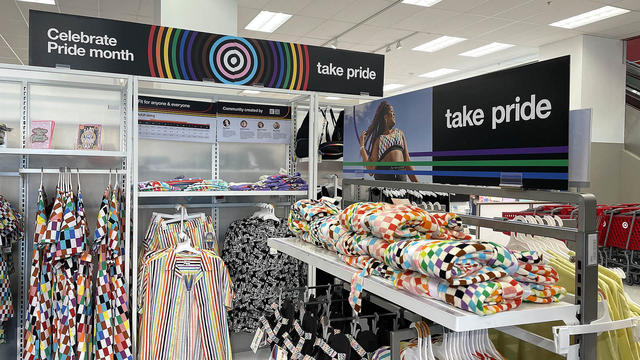
The decision to cut back on the number of stores carrying LGBTQ-themed items comes after some customers objected to the product line.
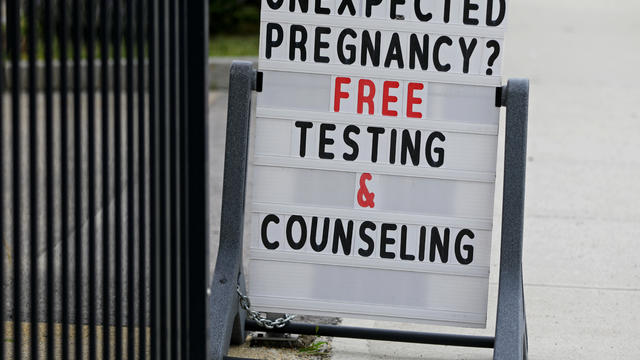
Some states are cracking down on claims by anti-abortion rights organizations that offer "abortion pill reversal" treatment.

Huy Fung Foods said its peppers are "too green" to make its signature sriracha sauce, forcing it to suspend production until September.

Retailers use a number of marketing ploys to separate you from your money, often by dangling freebies and discounts.

Annual wildfires and flooding are keeping major insurance companies from covering homeowners in California and Florida.
Maker of insulin pump urges customers to update an app because of glitch that causes the devices to unexpectedly shut down.

There are lots of good reasons to borrow with a home equity loan — but it won't make sense in every case.

Are you considering a gold investment in today's economy? Here are four signs to look out for.

Opening a 6-month CD account could be one of your best bets this month. Here's why.
Tesla accounted for 80% of electric vehicle sales in the U.S. in 2020, but that figure fell to 55% last year.
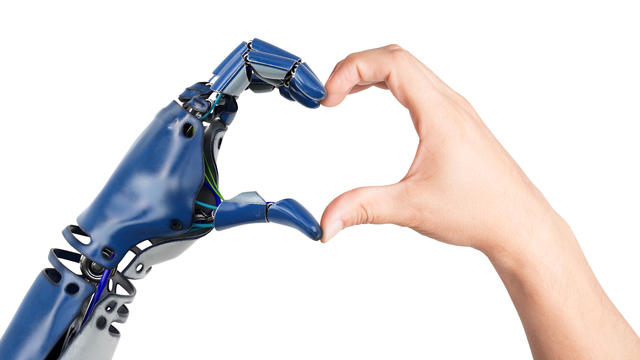
The generative artificial intelligence boom has led to the emergence of romantic companion bots.

Apple said it will stop selling the devices later this month in order to comply with a U.S. import ban.

Alex Jones, the conspiracy theorist known for his fake news site InfoWars and his false denial of the Sandy Hook massacre, was permanently banned from Twitter in 2018.
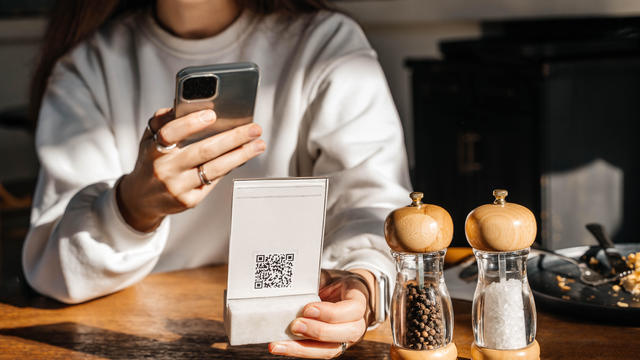
More than 90 million consumers will scan a QR code this year. But the technology can also facilitate identity theft.
The billionaire owner of X took a defensive tone, saying that "the whole world will know that those advertisers killed the company."
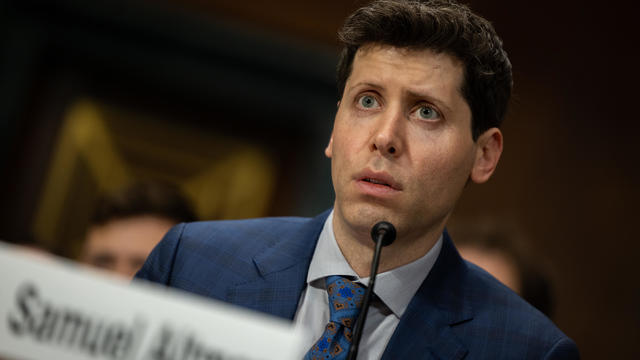
OpenAI co-founder Sam Altman says he's looking forward to returning to the company, with the support of Microsoft's CEO, to build the 2 companies' "strong partnership."

Musk, who is under fire for supporting an antisemitic post, said the money will be donated to hospitals in Israel and to the Red Cross in Gaza.
Altman landed at Microsoft, the biggest investor in OpenAI, as former Twitch leader Emmett Shear was named OpenAI's new chief executive.

The United Nations and other agencies have warned for weeks that an Israeli assault on Rafah, which borders Egypt near the main aid entry points, would cripple humanitarian operations

At the same time, the three are accusing each other of being pro-transgender.

A line of family, friends and loved ones filled a North Texas home to celebrate Viola Ford Fletcher's birthday.

North Korea in recent months has maintained an accelerated pace in weapons testing as it expands its military capabilities while diplomacy with the United States and South Korea remains stalled.

Sean "Diddy" Combs is asking a judge to dismiss a lawsuit alleging that he and two other men raped a 17-year-old girl in a New York recording studio in 2003.

The U.N. food agency says more than 300 Afghans have died in flash floods that also destroyed more than 1,000 houses in the northern province of Baghlan.

Trump could significantly restrict abortion without ever imposing a federal ban, some experts say. Here's how he could do it.

Native Fashion Week designers embraced the runway, juxtaposing modernity and traditional Native ceremony.

After losing a leg in the Boston Marathon bombings, Jessica Kensky proudly walked the graduation stage Friday with her service dog, Rescue, in hand.

With a relatively low average monthly cost of living and a low crime rate, this little-known town has a lot to offer retirees according to one report.

The U.S. is reaching "peak 65," marking the largest retirement wave in American history. But the financial outlook for many is grim.

Americans are underprepared for retirement, with the average account holding just $88,400 in savings.
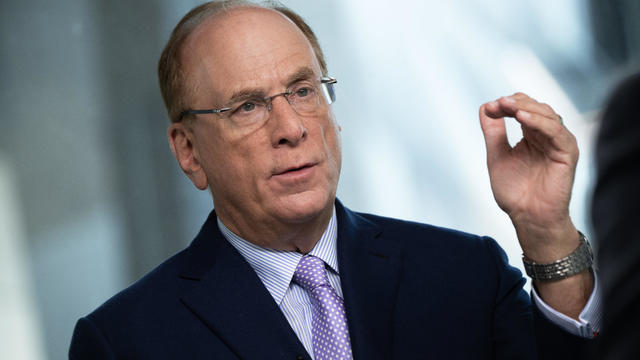
BlackRock CEO Larry Fink said that longer life expectancies are "putting the U.S. retirement system under immense strain."

About 1 in 8 workers think they'll retire by age 61. But the reality of saving for decades of expenses is daunting.
Sean "Diddy" Combs is asking a judge to dismiss a lawsuit alleging that he and two other men raped a 17-year-old girl in a New York recording studio in 2003.

Parts of the country saw the aurora borealis on Friday night and the dazzling show will continue on Saturday night, according to officials.
At the same time, the three are accusing each other of being pro-transgender.

"We're not investing in students' future by engaging in relationships with companies that profit from war," Sacramento State University President Luke Wood told CBS News.

Peggy Means' only daughter was in a coma with virtually no chance of ever coming out of it, doctors told her. And yet, Means refused to let them pull the plug.
The $5 meal could include a choice of a McChicken, a McDouble or four-piece chicken nuggets along with fries and a drink.
Due to bankruptcies and other problems, retailers plan to close almost 3,200 stores this year, up 24% from a year ago.
Huy Fung Foods said its peppers are "too green" to make its signature sriracha sauce, forcing it to suspend production until September.
Annual wildfires and flooding are keeping major insurance companies from covering homeowners in California and Florida.
The banking industry is mounting a last-ditch effort to block a new federal rule that would slash credit card late-payment fees.
At the same time, the three are accusing each other of being pro-transgender.

Michael Cohen's testimony in former President Donald Trump's criminal trial in New York suggests the prosecution is reaching the home stretch of its case.
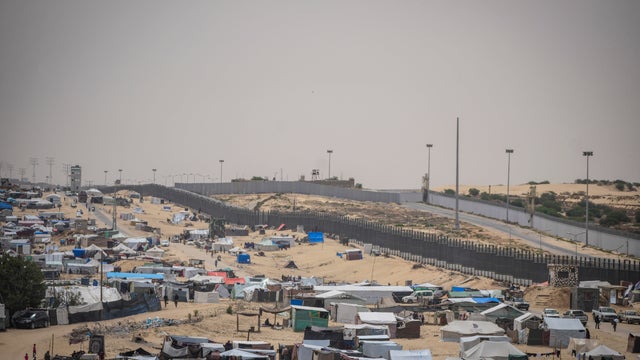
The highly anticipated State Department report doesn't formally conclude Israel is in violation of U.S. or international law.

A divided three-judge panel ruled last month a recently adopted congressional map that includes two majority-Black districts is an unconstitutional racial gerrymander.
The banking industry is mounting a last-ditch effort to block a new federal rule that would slash credit card late-payment fees.

Eighty-four million Americans had a mental disorder in 2022, while 34 million people had a substance use disorder. About 11 million people dealt with both, but many did not receive professional treatment, partially because of a persistent stigma leading to silence and shame around mental health problems. Michelle Miller reports on how former congressman Patrick J. Kennedy and author Stephen Fried are hoping to make change with their new book.
Some states are cracking down on claims by anti-abortion rights organizations that offer "abortion pill reversal" treatment.

The parents of a U.K. toddler say it's "absolutely mind-blowing" to see their daughter, enrolled in a gene therapy trial, hear for the first time.

Some of the strains in the "FLiRT" group are closely related to the JN.1 COVID variant from last winter.
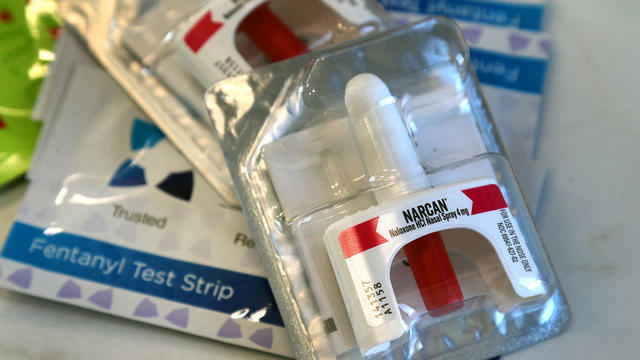
Seattle Mayor Bruce Harrell said that the facility would be supported by the Seattle Fire Department's overdose response team.

While officials work to keep politics out of the event, the Israel-Hamas war has led to controversy this year.
North Korea in recent months has maintained an accelerated pace in weapons testing as it expands its military capabilities while diplomacy with the United States and South Korea remains stalled.
The United Nations and other agencies have warned for weeks that an Israeli assault on Rafah, which borders Egypt near the main aid entry points, would cripple humanitarian operations
The U.N. food agency says more than 300 Afghans have died in flash floods that also destroyed more than 1,000 houses in the northern province of Baghlan.

Authorities in Russia say seven people were killed when a bus swerved through traffic, veered off a bridge in St. Petersburg and plunged into the river below.
Native Fashion Week designers embraced the runway, juxtaposing modernity and traditional Native ceremony.

The new book by the host of HBO's "Real Time" takes aim at those who brazenly invoke the standards of today to rewrite history in ways that even "Star Trek" would think go too far.
While officials work to keep politics out of the event, the Israel-Hamas war has led to controversy this year.
Sean "Diddy" Combs is asking a judge to dismiss a lawsuit alleging that he and two other men raped a 17-year-old girl in a New York recording studio in 2003.

Singer-songwriter Katie Pruitt garnered widespread acclaim for her introspective music and powerful live performances after releasing her first album in 2020. Rolling Stone even declared her an "artist you need to know." Now returning to Saturday Sessions with music from her new album "Mantras," here is Katie Pruitt with "White Lies, White Jesus And You."

Apple's "Crush!" advertisement for the new iPad Pro features a myriad of artistic tools getting smashed in a large hydraulic press.

The Ascension Healthcare Network, one of the nation's leading nonprofit and Catholic health systems, says a "cyber security event" disrupted its clinical operations Wednesday. Threat intelligence company Cyble says there have been 77 ransomware attacks on the U.S. health care sector since the beginning of February. CBS News homeland security and justice reporter Nicole Sganga joins to unpack the troubling trend.

From labor shortages to environmental impacts, farmers are looking to AI to help revolutionize the agriculture industry. One California startup, Farm-ng, is tapping into the power of AI and robotics to perform a wide range of tasks, including seeding, weeding and harvesting.

The tech giant disclosed Thursday that a database was accessed through a Dell portal, which contains a database of customer information. CBS News' John Dickerson has the details.

FTX says most of its customers will receive some of their money back nearly two years after the cryptocurrency exchange collapsed. Yesha Yadav, associate dean of Vanderbilt Law School, joins CBS News to discuss how the payback will work.
Parts of the country saw the aurora borealis on Friday night and the dazzling show will continue on Saturday night, according to officials.

Geomagnetic storms can affect infrastructure, but may also bring an expanded viewing of the aurora borealis.

Americans could be treated to a show of the northern lights this weekend from a powerful geomagnetic storm heading toward Earth.
The parents of a U.K. toddler say it's "absolutely mind-blowing" to see their daughter, enrolled in a gene therapy trial, hear for the first time.

Climeworks, a Swiss pioneer in the fast-growing field of CO2 capture and storage, launches operations at a new site on a dormant volcano.

Witness testimony continued Friday in the murder trial of Karen Read, a Massachusetts woman accused of killing her police officer boyfriend, John O'Keefe, in 2022. Read has pleaded not guilty and her lawyers argue local law enforcement officials are framing her. CBS News Boston's Penny Kmitt has the latest on the testimony.

Bailey Boswell was convicted of murder in the 2017 death of Sydney Loofe. Boswell's boyfriend was also convicted and sentenced to death.
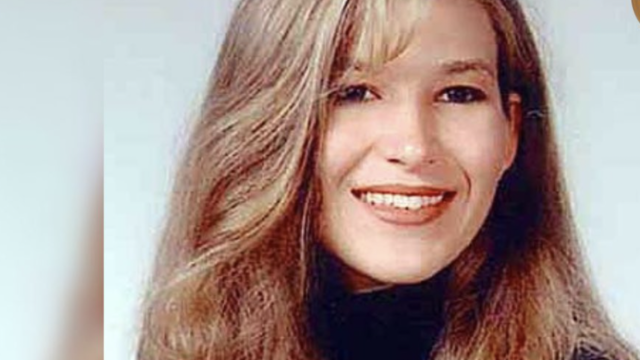
Edrick Lamont Faust, 48, was charged with murder, and various other charges in connection with the 23-year-old first-year law student's death, the Georgia Bureau of Investigation announced.
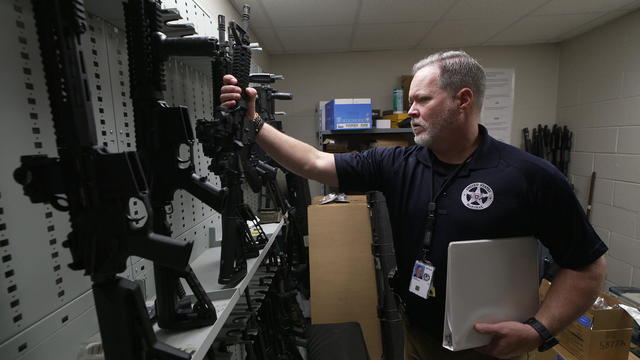
How an unusual clue ended life on the run for fugitive William Greer, wanted for killing his girlfriend Tammy Myers and hiding her body.
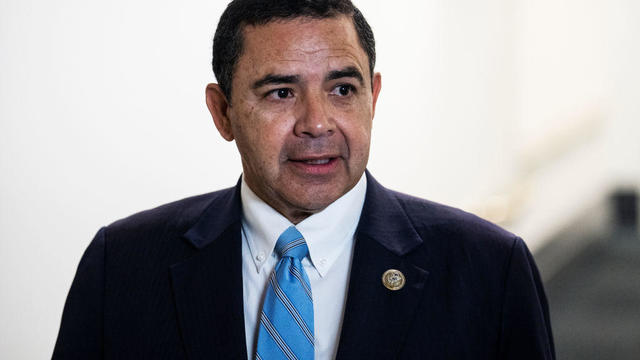
Democratic Rep. Henry Cuellar and his wife, Imelda Rios Cuellar, have been indicted in an alleged bribery scheme.
Geomagnetic storms can affect infrastructure, but may also bring an expanded viewing of the aurora borealis.
Americans could be treated to a show of the northern lights this weekend from a powerful geomagnetic storm heading toward Earth.

The sunspot responsible for the odd series of strong solar flares is so big you can see it with your own eyes from Earth.

In the image, "a ghostly hand appears to be emerging from the interstellar medium and reaching out into the cosmos," the NOIRLab said.

The so-called super Earth — known as 55 Cancri e — is among the few rocky planets outside our solar system with a significant atmosphere.
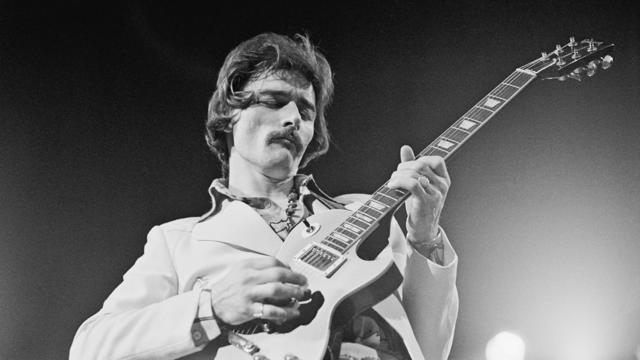
A look back at the esteemed personalities who've left us this year, who'd touched us with their innovation, creativity and humanity.
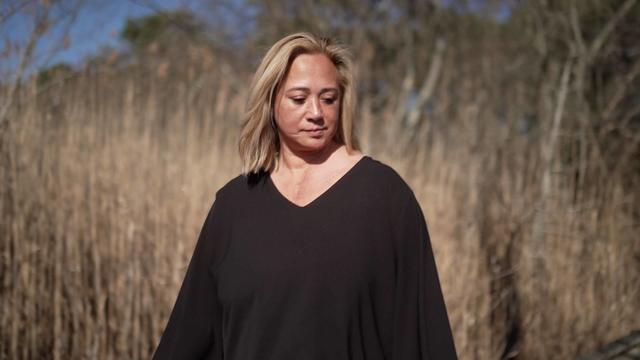
Despite losing three quarters of the blood in her body, Donna Ongsiako was able to help police find the person who almost took her life.

The Francis Scott Key Bridge in Baltimore collapsed early Tuesday, March 26 after a column was struck by a container ship that reportedly lost power, sending vehicles and people into the Patapsco River.
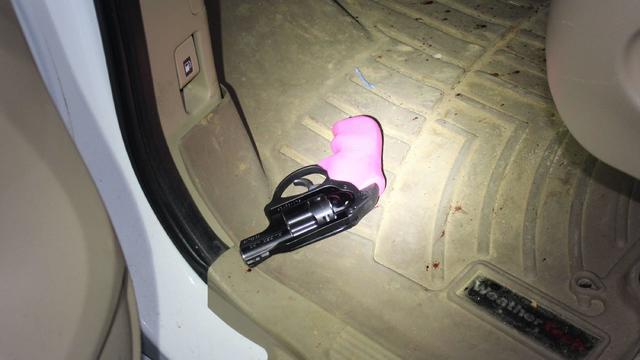
When Tiffiney Crawford was found dead inside her van, authorities believed she might have taken her own life. But could she shoot herself twice in the head with her non-dominant hand?
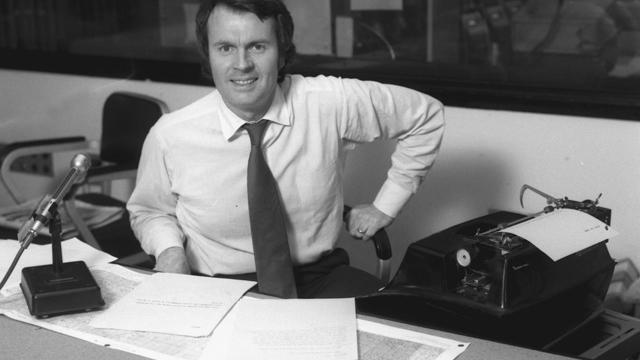
We look back at the life and career of the longtime host of "Sunday Morning," and "one of the most enduring and most endearing" people in broadcasting.

David Begaud heads to a surprise city on a mission to find a story in 48 hours – and he meets three strangers with powerful messages to share. A heroic cowboy teaches a lesson in modesty. Plus, more heartwarming news stories.

In Washington, D.C., we meet two figure skaters who are expanding access to the sport to other Black college students. Then in California, UFC legend Ronda Rousey opens up about her life and career in her vulnerable new memoir. Watch these stories and more on Eye on America with host Michelle Miller.

Incredible Northern lights set the sky ablaze on Friday night, with some vibrant colors even visible to the naked eye amid a geomagnetic storm. Meanwhile, a protest in Germany at a Tesla factory turned into a stampede. All that and all that matters in today’s Eye Opener.
Singer-songwriter Katie Pruitt garnered widespread acclaim for her introspective music and powerful live performances after releasing her first album in 2020. Rolling Stone even declared her an "artist you need to know." Now returning to Saturday Sessions with music from her new album "Mantras," here is Katie Pruitt with "White Lies, White Jesus And You."

Singer-songwriter Katie Pruitt garnered widespread acclaim for her introspective music and powerful live performances after releasing her first album in 2020. Rolling Stone even declared her an "artist you need to know." Now returning to Saturday Sessions with music from her new album "Mantras," here is Katie Pruitt with "Worst Case Scenario."