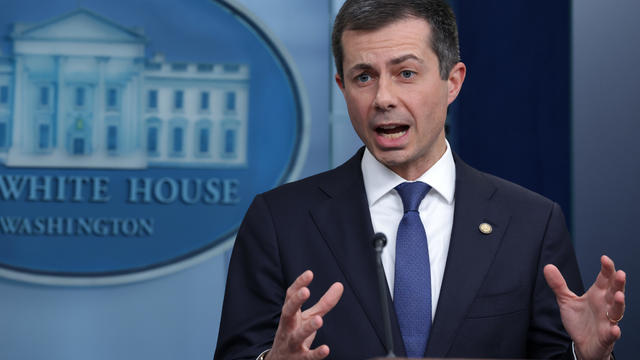
What airline passengers should know about their rights to get refunds
New Transportation Department rules could save consumers $500 million annually, Transportation Secretary Pete Buttigieg said.
Watch CBS News

New Transportation Department rules could save consumers $500 million annually, Transportation Secretary Pete Buttigieg said.

Lawmakers argue the Chinese government can use the widely popular video-sharing app as a spy tool and to covertly influence the U.S. public.

Proponents say a sweeping ban on noncompete clauses should boost workers, but the new rules face serious legal challenges.
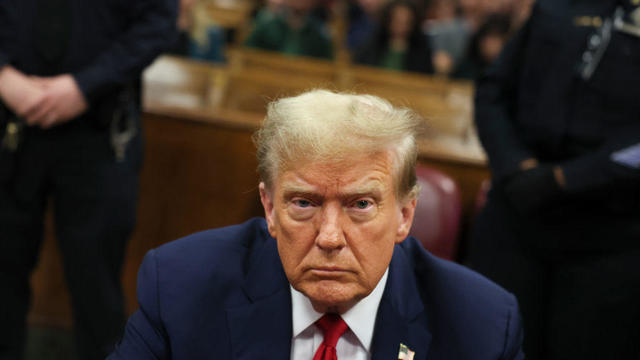
Trump Media CEO Devin Nunes is asking four House committees to investigate possible "naked" short selling in the company's shares.

Travelers often spend more than they need to for airfare, experts say. Here's what to know about paying for add-ons like your seat assignment.
TikTok ban measure signed by Biden. Here's what could happen next.
Expanded federal overtime rule could result in employers paying workers an additional $1.5 billion, according to one estimate.

Regulators prohibit new noncompetes, which impede millions of U.S. workers from getting a better job.

A new rule will affect frozen breaded and stuffed raw chicken products that appear to be fully cooked but are only heat-treated.

Shorter CD terms can provide more flexibility but lack the certainty of long-term CDs.

Do you have $7,500 or more in credit card debt? Here are a few ways to pay it off quickly.

Looking to make a successful investment in gold? Then be sure to avoid making these simple mistakes.
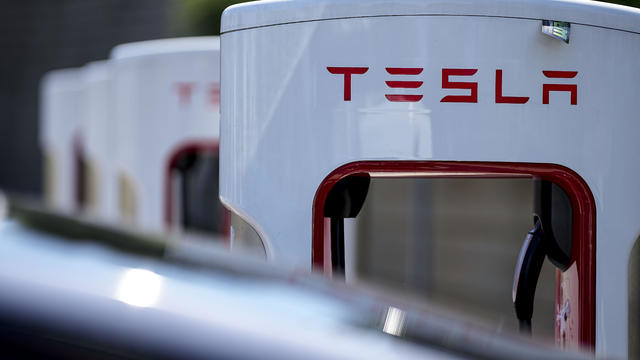
Tesla accounted for 80% of electric vehicle sales in the U.S. in 2020, but that figure fell to 55% last year.
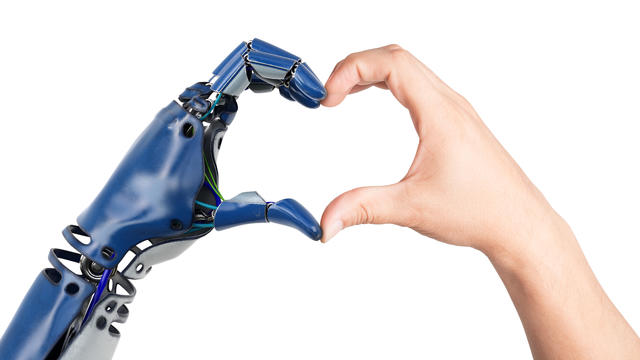
The generative artificial intelligence boom has led to the emergence of romantic companion bots.

Apple said it will stop selling the devices later this month in order to comply with a U.S. import ban.

Alex Jones, the conspiracy theorist known for his fake news site InfoWars and his false denial of the Sandy Hook massacre, was permanently banned from Twitter in 2018.

More than 90 million consumers will scan a QR code this year. But the technology can also facilitate identity theft.
The billionaire owner of X took a defensive tone, saying that "the whole world will know that those advertisers killed the company."
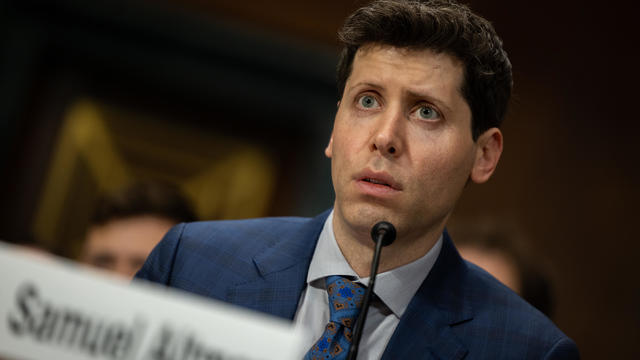
OpenAI co-founder Sam Altman says he's looking forward to returning to the company, with the support of Microsoft's CEO, to build the 2 companies' "strong partnership."
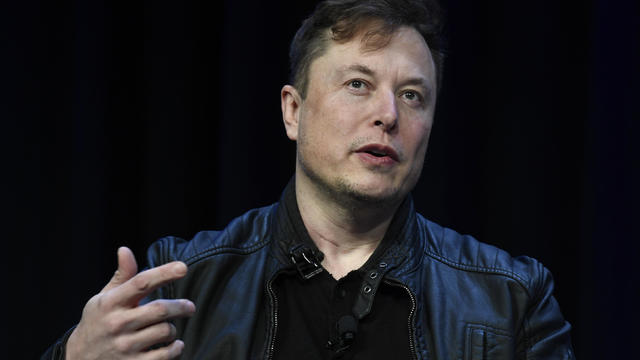
Musk, who is under fire for supporting an antisemitic post, said the money will be donated to hospitals in Israel and to the Red Cross in Gaza.
Altman landed at Microsoft, the biggest investor in OpenAI, as former Twitch leader Emmett Shear was named OpenAI's new chief executive.
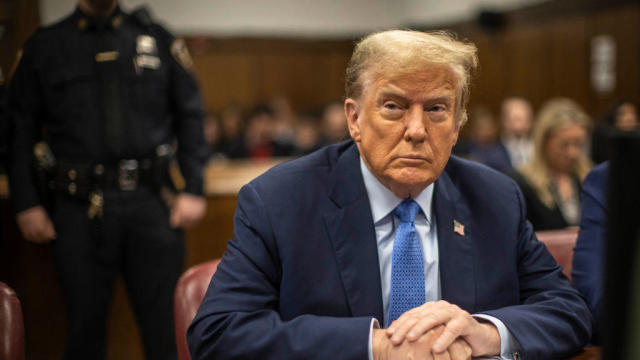
Follow live updates as former National Enquirer publisher David Pecker fields questions from former President Donald Trump's defense team.

Hundreds of people have been arrested in California, New York, Massachusetts, Texas, Georgia and other states during the tense protests on college campuses.

A Black man in Ohio, Frank Tyson, seen handcuffed and facedown on a bar floor in the video, died in police custody. Officers involved have been placed on paid administrative leave.
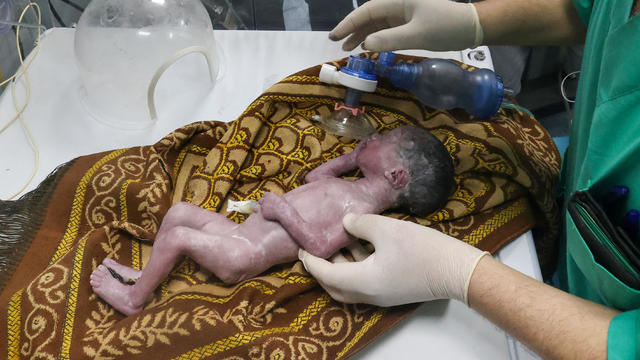
Sabreen Erooh had survived an emergency cesarean section after her mother was fatally wounded in an Israeli airstrike.
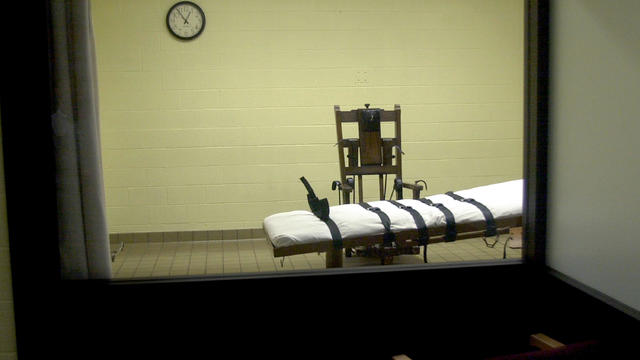
Alabama has set a July 18 execution date for a man convicted in the 1998 shooting death of a delivery driver who had stopped at an ATM.
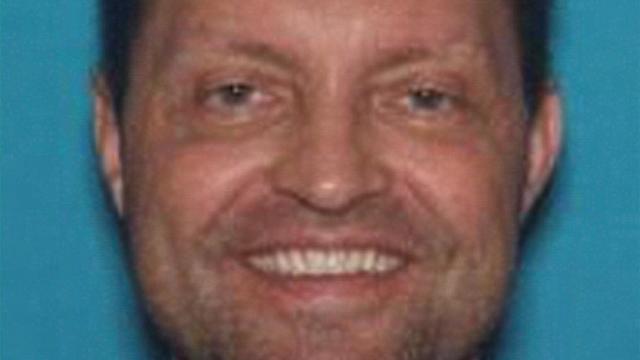
The case fueled social media speculation about whether his disappearance had been tied to his cryptocurrency dealings.
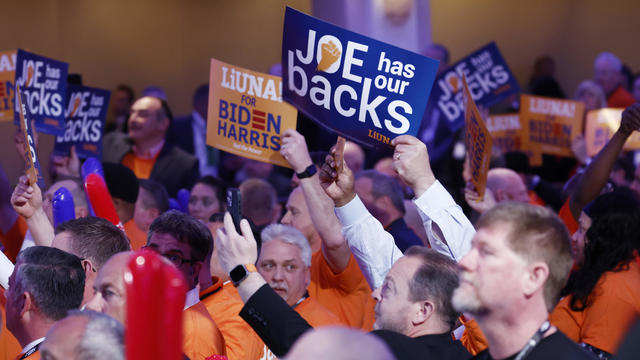
President Biden finds familiar and active allies for his reelection bid with labor union endorsements.

A 20-year-old British man has been charged with plotting an arson attack on a Ukraine-linked target in London at the behest of Russia.

The Heisman Trophy was returned to former University of Southern California running back Reggie Bush Thursday after a 14-year dispute with the NCAA.

The U.S. is reaching "peak 65," marking the largest retirement wave in American history. But the financial outlook for many is grim.

Americans are underprepared for retirement, with the average account holding just $88,400 in savings.
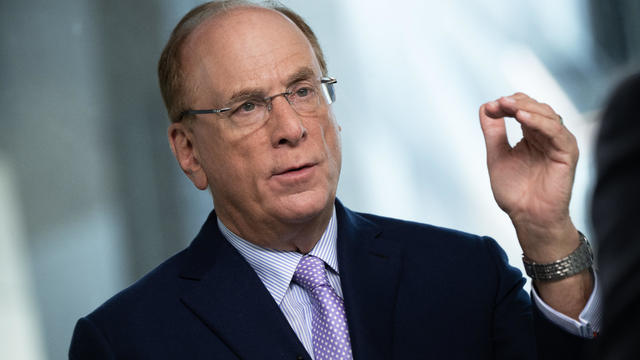
BlackRock CEO Larry Fink said that longer life expectancies are "putting the U.S. retirement system under immense strain."

About 1 in 8 workers think they'll retire by age 61. But the reality of saving for decades of expenses is daunting.

America's retirement system has left behind 90% of workers. "We see big gaps with the rich and the poor in terms of who gets to retire," one expert said.
Follow live updates as former National Enquirer publisher David Pecker fields questions from former President Donald Trump's defense team.
The Heisman Trophy was returned to former University of Southern California running back Reggie Bush Thursday after a 14-year dispute with the NCAA.
A new rule will affect frozen breaded and stuffed raw chicken products that appear to be fully cooked but are only heat-treated.
Alabama has set a July 18 execution date for a man convicted in the 1998 shooting death of a delivery driver who had stopped at an ATM.
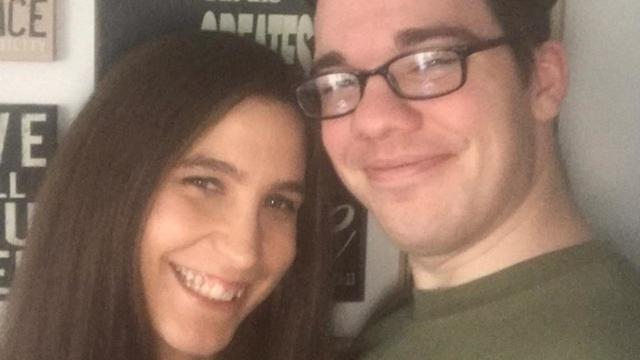
After Kristen Trickle died at her home in Kansas, her husband Colby Trickle received over $120,000 in life insurance benefits and spent nearly $2,000 on a sex doll supposedly to help him sleep.
A new rule will affect frozen breaded and stuffed raw chicken products that appear to be fully cooked but are only heat-treated.

The National Highway Traffic Safety Administration is investigating whether last year's recall of Tesla's Autopilot driving system did enough to make sure drivers pay attention to the road.

Some 46.8% of luxury homes were bought entirely with cash in the three months ended February 29, the highest share in a decade, according to Redfin.

The median mortgage payment jumped to a record $2,843 in April, up nearly 13% from a year ago, a new analysis finds.
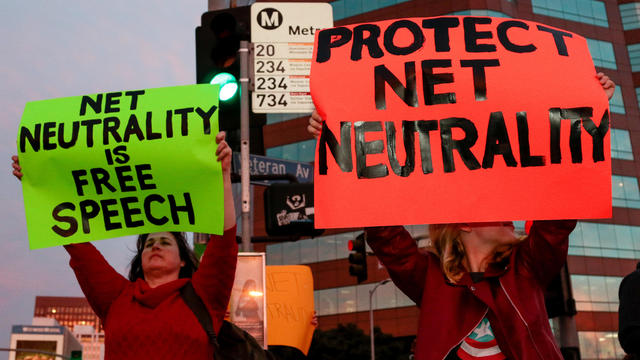
U.S. regulators are reviving a rescinded rule, laying the groundwork for for a major court fight with the broadband industry.
Follow live updates as former National Enquirer publisher David Pecker fields questions from former President Donald Trump's defense team.

After meeting China's leader Xi Jinping, Antony Blinken says both sides agree that difficult discussions are essential to avoid "any miscalculations."
President Biden finds familiar and active allies for his reelection bid with labor union endorsements.
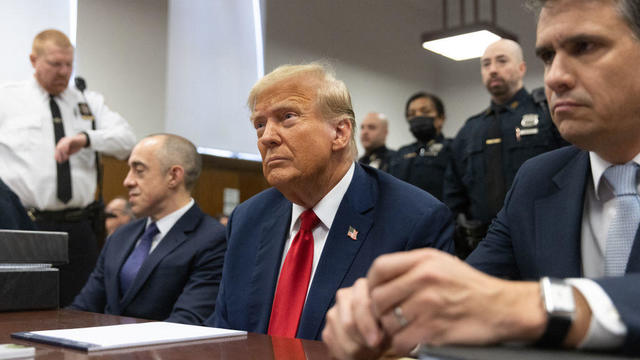
Former National Enquirer boss David Pecker appeared on the stand for the third day, detailing an agreement the tabloid made with a former Playboy model.
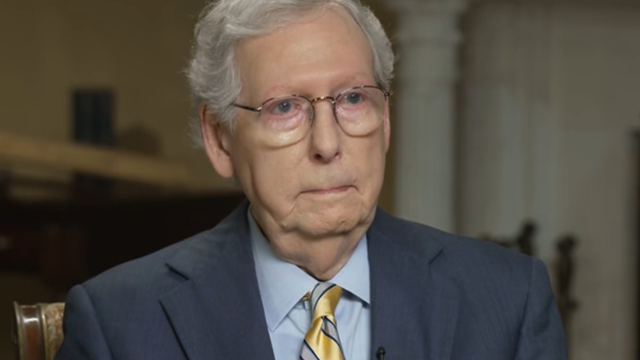
Senate Minority Leader Mitch McConnell appears on "Face the Nation" as pro-Palestinian protests roil American politics.

Are you using your smartwatch to the fullest? Here are 4 metrics doctors say can be useful to track beyond your daily step count.
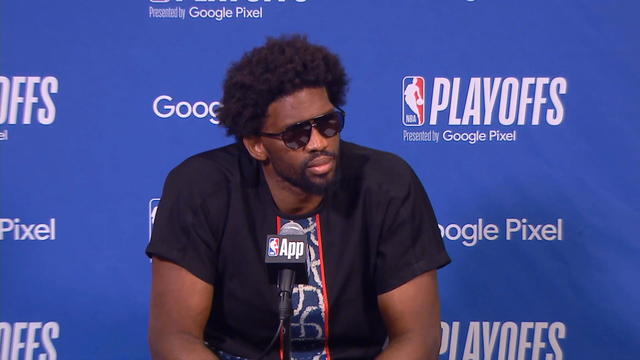
Joel Embiid has been experiencing Bell's palsy symptoms, he said after Philadelphia's 125-114 win over the New York Knicks.
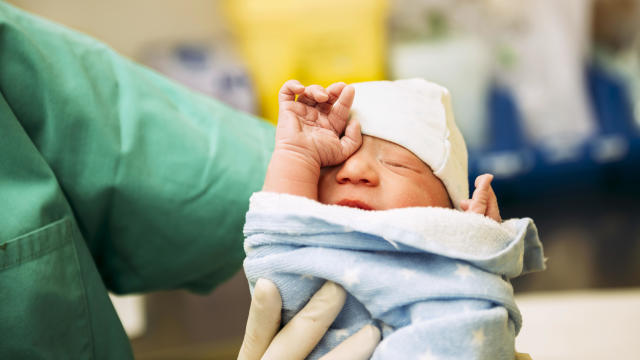
CDC's provisional figures show a 2% decline in births from 2022 to 2023.
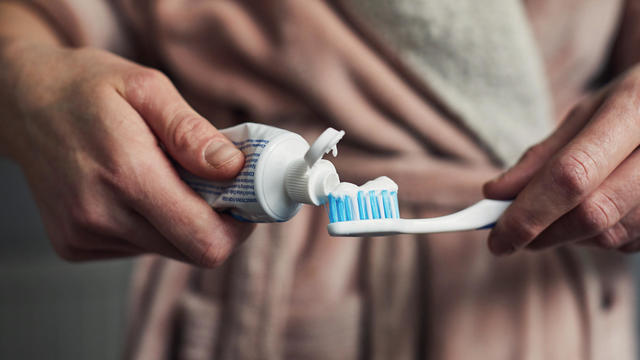
Don't brush your teeth after breakfast? Or after vomiting? Dentists say it can wear away your enamel. Here's what to do instead.
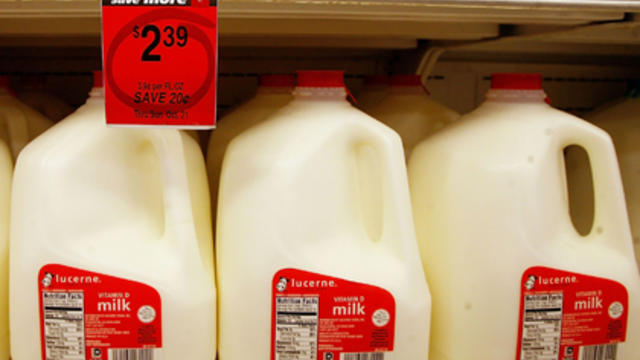
Federal officials say they're double checking whether pasteurization has eradicated the danger from possible bird virus particles in milk.
A 20-year-old British man has been charged with plotting an arson attack on a Ukraine-linked target in London at the behest of Russia.

In Tanzania, heavy rains have affected more than 200,000 people and ruined major infrastructure, officials said.

A pair of bears picked the wrong person to mess with when they approached a 50-year-old karate practitioner.
Sabreen Erooh had survived an emergency cesarean section after her mother was fatally wounded in an Israeli airstrike.
After meeting China's leader Xi Jinping, Antony Blinken says both sides agree that difficult discussions are essential to avoid "any miscalculations."
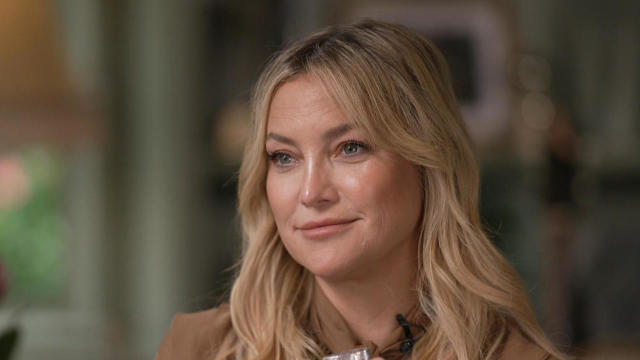
Preview: In an interview to be broadcast on "CBS News Sunday Morning" April 28, the Oscar-nominated actress also talks about her debut as a singer-songwriter with the album "Glorious."

Looking for a place to live in NYC? Zillow is now listing Frank Sinatra and Mia Farrow's former home on the Upper East Side.

Italy's Culture Ministry has banned loans of works to the Minneapolis Institute of Art, following a dispute with the U.S. museum over an ancient marble statue believed to have been looted from Italy almost a half-century ago.

The renowned Moulin Rouge cabaret venue's director has vowed to "rise to the challenge" after the windmill's sails fell off.
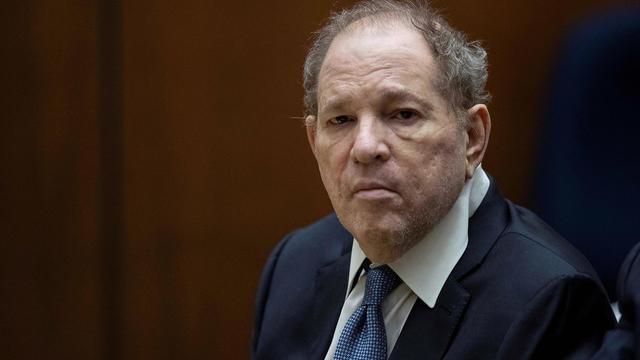
Harvey Weinstein's 2020 conviction on felony sex crime charges has been overturned by the State of New York Court of Appeals.
Are you using your smartwatch to the fullest? Here are 4 metrics doctors say can be useful to track beyond your daily step count.

Local and federal authorities face challenges in investigating and prosecuting romance scammers because the scammers are often based overseas. Jim Axelrod explains.

From labor shortages to environmental impacts, farmers are looking to AI to help revolutionize the agriculture industry. One California startup, Farm-ng, is tapping into the power of AI and robotics to perform a wide range of tasks, including seeding, weeding and harvesting.
U.S. regulators are reviving a rescinded rule, laying the groundwork for for a major court fight with the broadband industry.

Meta began rolling out its new AI-powered smart assistant software, saying it will be integrated across Instagram, Facebook and Messenger. Adam Auriemma, editor-in-chief for CNET, joined CBS News to discuss the new tool.
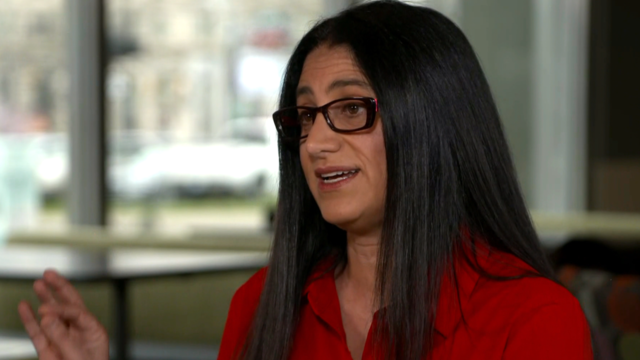
Pediatrician Dr. Mona Hanna-Attisha, whose work has spurred official action on the Flint water crisis, told CBS News that it's stunning that "we continue to use the bodies of our kids as detectors of environmental contamination." She discusses ways to support victims of the water crisis, the ongoing work of replacing the city's pipes and more in this extended interview.
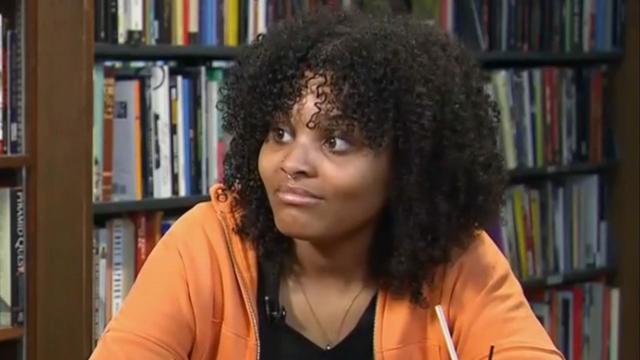
Ten years ago, a water crisis began when Flint, Michigan, switched to the Flint River for its municipal water supply. The more corrosive water was not treated properly, allowing lead from pipes to leach into many homes. CBS News correspondent Ash-har Quraishi spoke with residents about what the past decade has been like.
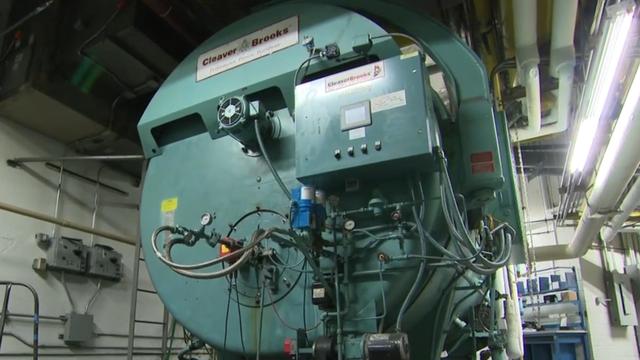
According to the University of California, Davis, residential energy use is responsible for 20% of total greenhouse gas emissions in the U.S. However, one company is helping residential buildings reduce their impact and putting carbon to use. CBS News' Bradley Blackburn shows how the process works.

Emerging cicadas are so loud in one South Carolina county that residents are calling the sheriff's office asking why they can hear a "noise in the air that sounds like a siren, or a whine, or a roar." CBS News' John Dickerson has details.
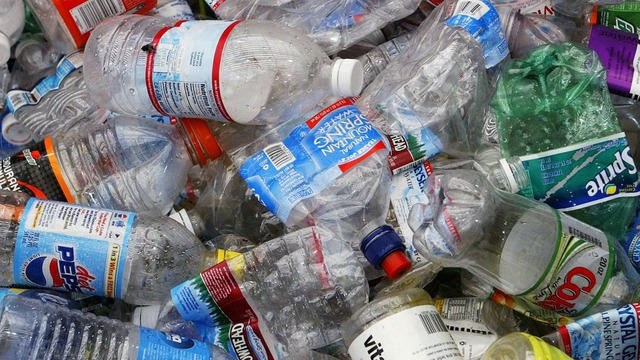
Representatives from across the world are gathering in Ottawa, Canada, to negotiate a potential treaty to limit plastic pollution. CBS News national environmental correspondent David Schechter has the latest on the talks.
After Kristen Trickle died at her home in Kansas, her husband Colby Trickle received over $120,000 in life insurance benefits and spent nearly $2,000 on a sex doll supposedly to help him sleep.
Expert panel discussion centers the focus on the disparity that 1 in 3 victims of crime in Chicago is a Black woman
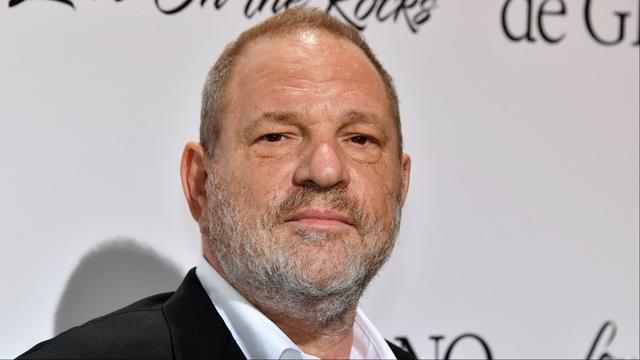
The State of New York Court of Appeals overturned Harvey Weinstein's 2020 rape conviction Thursday and has ordered a new trial. Julie Rendelman, a criminal defense attorney, and CBS News national correspondent Jericka Duncan look at the possible reasons why it was overturned and what it means for Weinstein, who was also convicted of rape in Los Angeles in 2022.
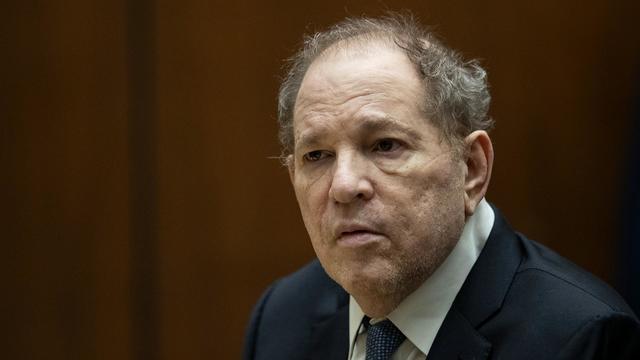
A New York appeals court overturned Harvey Weinstein's 2020 conviction on felony sex crimes. The court ruled that the disgraced movie mogul did not have a fair trial because the judge who presided over the case allowed women to testify about allegations that were not part of the charges against him. Weinstein will remain in prison because of his rape conviction in Los Angeles.
Harvey Weinstein's 2020 conviction on felony sex crime charges has been overturned by the State of New York Court of Appeals.

Astronauts Barry Wilmore and Sunita Williams say they have complete confidence in the Starliner despite questions about Boeing's safety culture.
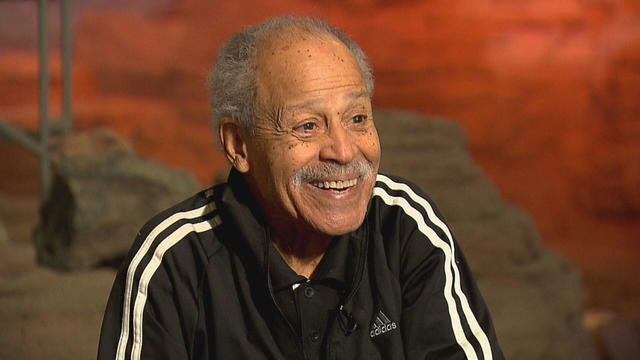
In 1961, Ed Dwight was selected by President John F. Kennedy to enter an Air Force training program known as the path to NASA's Astronaut Corps. But he ultimately never made it to space.

The creepy patterns were observed by the European Space Agency's ExoMars Trace Gas Orbiter.

The Shenzhou 18 crew will replace three taikonauts aboard the Chinese space station who are wrapping up a six-month stay.

In November 2023, NASA's Voyager 1 spacecraft stopped sending "readable science and engineering data."
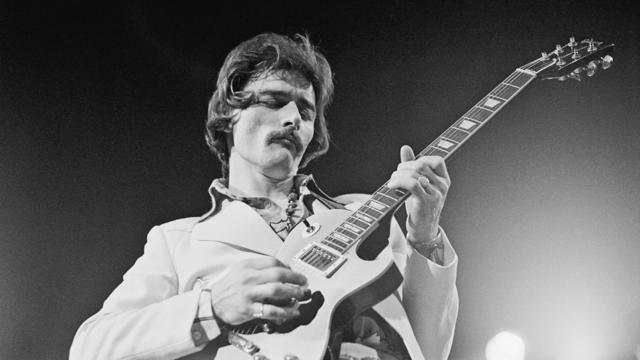
A look back at the esteemed personalities who've left us this year, who'd touched us with their innovation, creativity and humanity.

The Francis Scott Key Bridge in Baltimore collapsed early Tuesday, March 26 after a column was struck by a container ship that reportedly lost power, sending vehicles and people into the Patapsco River.
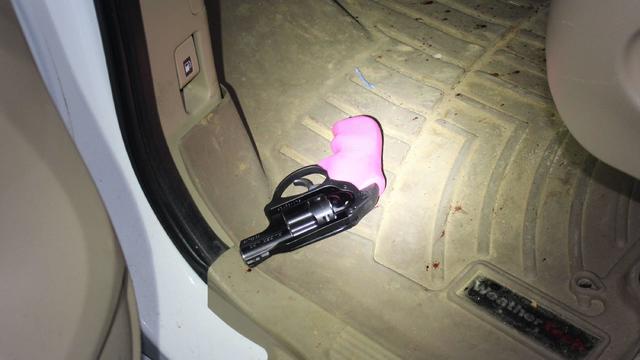
When Tiffiney Crawford was found dead inside her van, authorities believed she might have taken her own life. But could she shoot herself twice in the head with her non-dominant hand?
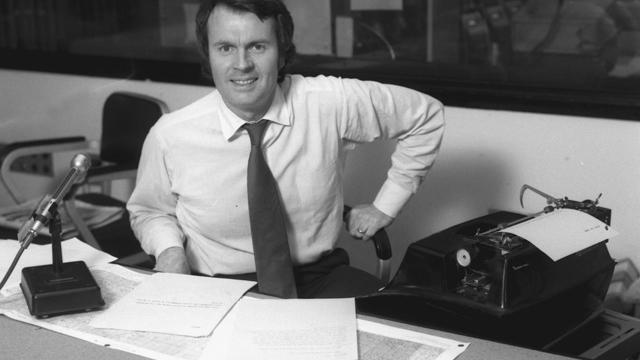
We look back at the life and career of the longtime host of "Sunday Morning," and "one of the most enduring and most endearing" people in broadcasting.

Cayley Mandadi's mother and stepfather go to extreme lengths to prove her death was no accident.
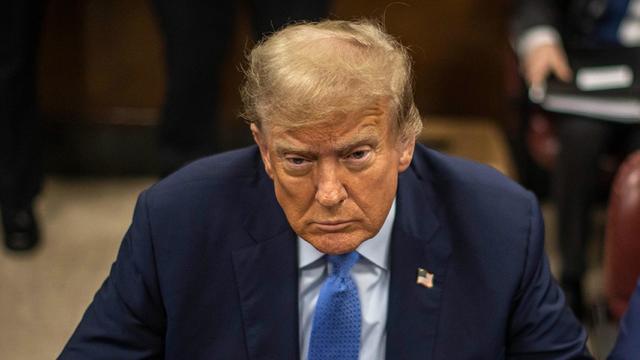
The judge in Donald Trump's "hush money" trial says more arguments will be heard next Thursday over whether the former president should be held in contempt for allegedly violating the gag order set in the case. CBS News correspondent Errol Barnett has more on that and the resumption of testimony from former National Enquirer publisher David Pecker.

Former National Enquirer publisher David Pecker's testimony will continue in Donald Trump's New York criminal trial Friday morning, a day after he revealed new details about the alleged "catch and kill" scheme he engaged in for the Trump campaign in 2016. CBS News correspondent Errol Barnett has more.

Demonstrations over the war in Gaza are growing on college campuses across the country. Columbia University students are digging in for their 10th day of demonstrations after the school retreated from its midnight deadline to break up an encampment. CBS News Boston reporter Penny Kmitt reports from Northeastern University where another encampment has been built as part of protests there.
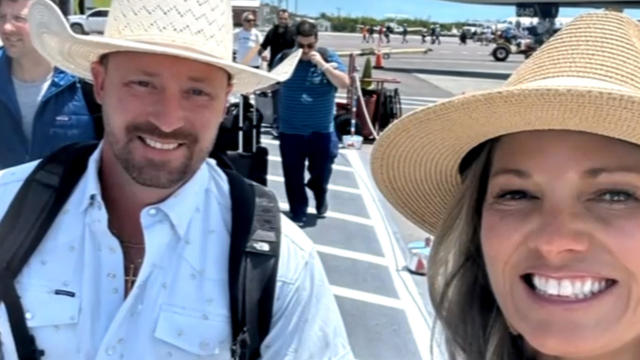
An American tourist in Turks and Caicos is out on bail after he was arrested by airport security when they allegedly found ammo in his luggage. Ryan Watson says it was mistakenly in his bag, but he's now facing a potential mandatory minimum sentence of 12 years behind bars. CBS News senior travel adviser Peter Greenberg has more.

Secretary of State Antony Blinken met with Chinese President Xi Jinping Friday in an effort to stabilize relations between the U.S. and China. While speaking in Beijing earlier, Blinken urged China to end its support for Russia's war in Ukraine. CBS News national security reporter Olivia Gazis has more.