
Online gambling casts deepening shadow on pro sports
Eliminating player "proposition" bets may be one way to discourage athletes from betting on sports, experts said.
Watch CBS News

Eliminating player "proposition" bets may be one way to discourage athletes from betting on sports, experts said.

The MY 2024 Cybertrucks have faulty accelerator pedals that may be dislodged when high force is applied, the company said.
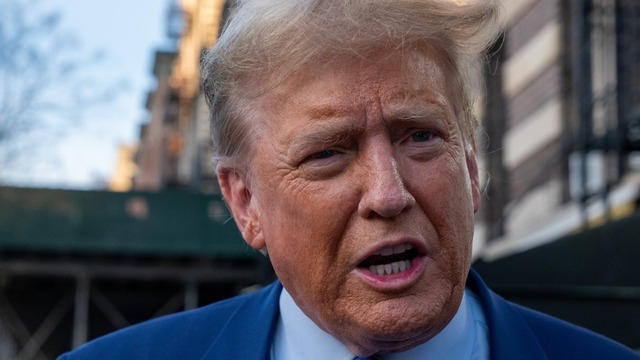
Trump Media & Technology Group sent a letter to Nasdaq warning that so-called "naked" short selling could be impacting its stock.

Direct conflict between Israel and Iran, which threaten global oil supplies and could drive up energy costs, has investors on edge.
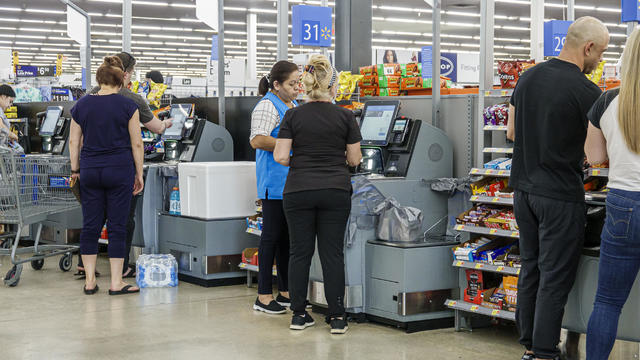
Retailers are ditching and limiting shelf-checkout at some stores, particularly those hit by theft and customer complaints.

Starbucks unveiled the new cups ahead of Earth Day and as a new report warns plastic production emissions are even greater than those from aviation.

House Speaker Mike Johnson is including the TikTok divest-or-ban bill in an aid package for Ukraine and Israel.

The U.S. is reaching "peak 65," marking the largest retirement wave in American history. But the financial outlook for many is grim.

Health officials are warning consumers not to consume the Infinite Herbs basil sold at Trader Joe's after 12 people were sickened.

Considering adding gold to your retirement portfolio? Here's why you may want to act now.

Here's why long-term care insurance is a better way to plan for long-term care costs than paying on your own.

Borrowing your home equity could lead to savings compared to other options. Find out how much you'd save here.
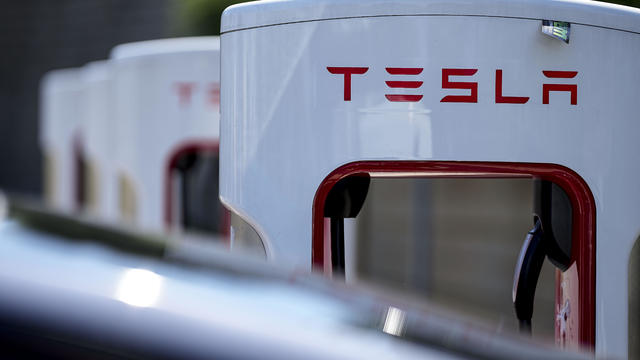
Tesla accounted for 80% of electric vehicle sales in the U.S. in 2020, but that figure fell to 55% last year.

The generative artificial intelligence boom has led to the emergence of romantic companion bots.

Apple said it will stop selling the devices later this month in order to comply with a U.S. import ban.

Alex Jones, the conspiracy theorist known for his fake news site InfoWars and his false denial of the Sandy Hook massacre, was permanently banned from Twitter in 2018.

More than 90 million consumers will scan a QR code this year. But the technology can also facilitate identity theft.
The billionaire owner of X took a defensive tone, saying that "the whole world will know that those advertisers killed the company."
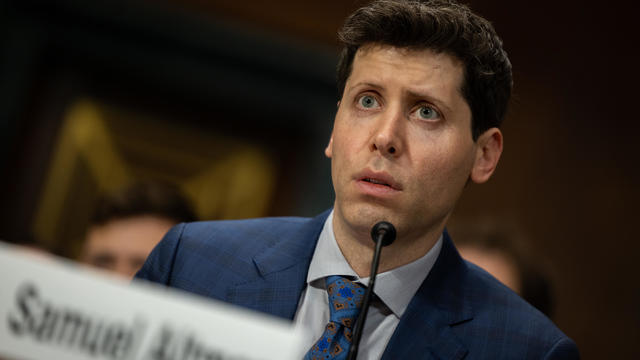
OpenAI co-founder Sam Altman says he's looking forward to returning to the company, with the support of Microsoft's CEO, to build the 2 companies' "strong partnership."
Musk, who is under fire for supporting an antisemitic post, said the money will be donated to hospitals in Israel and to the Red Cross in Gaza.
Altman landed at Microsoft, the biggest investor in OpenAI, as former Twitch leader Emmett Shear was named OpenAI's new chief executive.
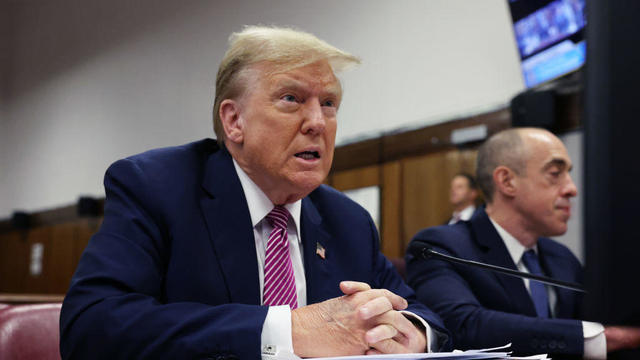
The final five alternate jurors in former President Donald Trump's New York criminal trial were selected on Friday.
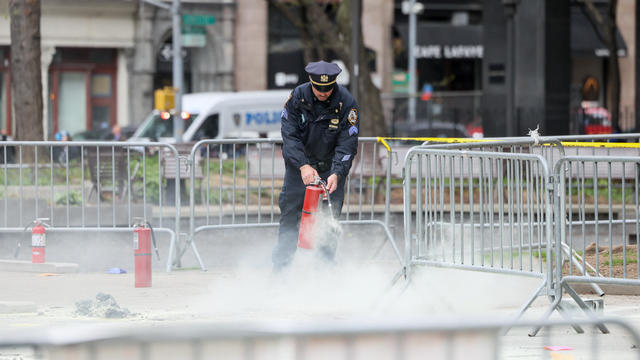
A person self-immolated at a park across from the courthouse where former President Donald Trump's New York criminal trial is taking place.
The CDC estimates the U.S. could reach 300 measles cases this year.
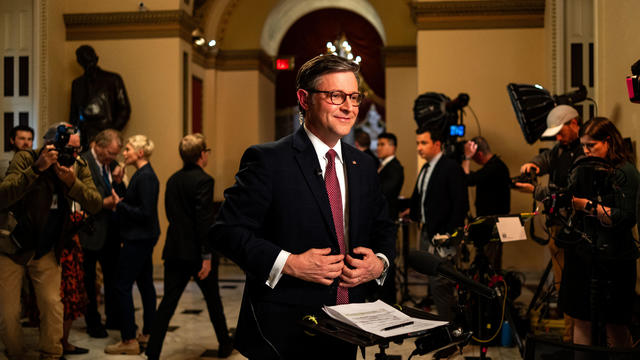
Democrats may have to offer Johnson a lifeline if it comes to a vote, given Republicans' razor-thin majority.
Trump Media & Technology Group sent a letter to Nasdaq warning that so-called "naked" short selling could be impacting its stock.
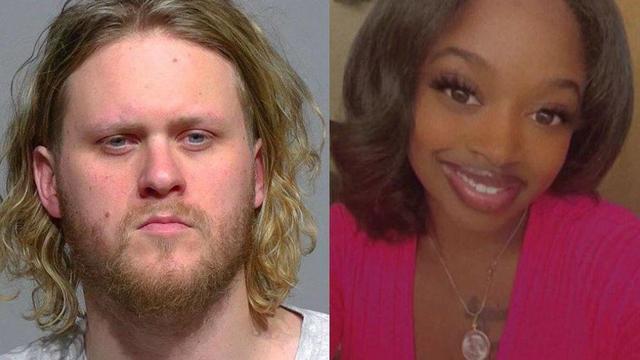
Maxwell Anderson, 33, has been charged with first-degree intentional homicide in the death of 19-year-old Sade Robinson.

Fans are furiously dissecting the lyrics of "The Tortured Poets Department," with some speculating the tracks are about Joe Alwyn, Matty Healy, Travis Kelce and Kim Kardashian.

The singer was found deceased at her home, a representative said.

North Korea's latest launch to boost Kim Jong Un's image wasn't a missile, but a song and music video all about the "Friendly Father."
The U.S. is reaching "peak 65," marking the largest retirement wave in American history. But the financial outlook for many is grim.

Americans are underprepared for retirement, with the average account holding just $88,400 in savings.
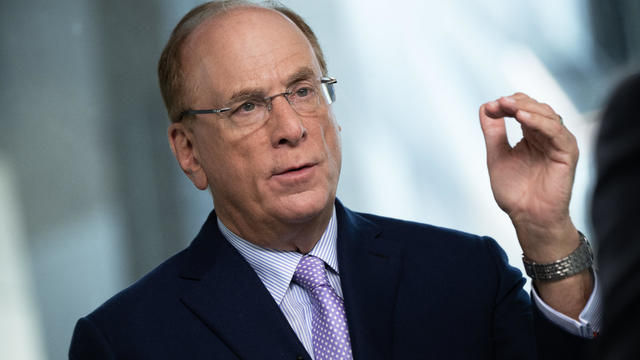
BlackRock CEO Larry Fink said that longer life expectancies are "putting the U.S. retirement system under immense strain."

About 1 in 8 workers think they'll retire by age 61. But the reality of saving for decades of expenses is daunting.

America's retirement system has left behind 90% of workers. "We see big gaps with the rich and the poor in terms of who gets to retire," one expert said.
The CDC estimates the U.S. could reach 300 measles cases in 2024 — more than the recent peak two years ago.
A person self-immolated at a park across from the courthouse where former President Donald Trump's New York criminal trial is taking place.
The singer was found deceased at her home, a representative said.
Democrats may have to offer Johnson a lifeline if it comes to a vote, given Republicans' razor-thin majority.
Fans are furiously dissecting the lyrics of "The Tortured Poets Department," with some speculating the tracks are about Joe Alwyn, Matty Healy, Travis Kelce and Kim Kardashian.
Retailers are ditching and limiting shelf-checkout at some stores, particularly those hit by theft and customer complaints.
Eliminating player "proposition" bets may be one way to discourage athletes from betting on sports, experts said.
Trump Media & Technology Group sent a letter to Nasdaq warning that so-called "naked" short selling could be impacting its stock.
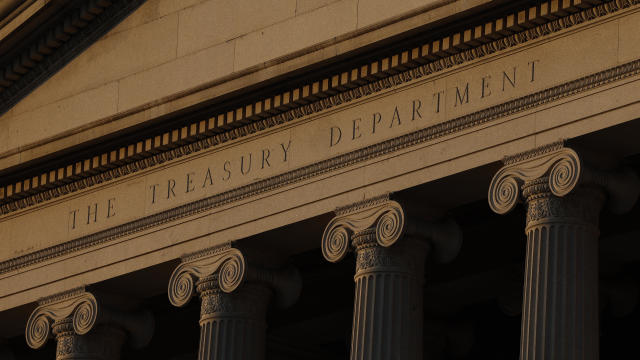
The Treasury Department announced sanctions on two entities accused of fundraising for extremist West Bank settlers connected to violence against Palestinians.
The MY 2024 Cybertrucks have faulty accelerator pedals that may be dislodged when high force is applied, the company said.
A person self-immolated at a park across from the courthouse where former President Donald Trump's New York criminal trial is taking place.
Democrats may have to offer Johnson a lifeline if it comes to a vote, given Republicans' razor-thin majority.
The Treasury Department announced sanctions on two entities accused of fundraising for extremist West Bank settlers connected to violence against Palestinians.
The final five alternate jurors in former President Donald Trump's New York criminal trial were selected on Friday.
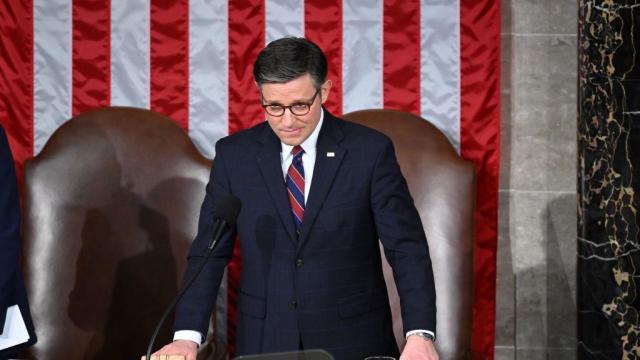
The bills are part of a complicated plan by Speaker Mike Johnson to get badly needed lethal aid to Ukraine, as well as security funding for Israel and Taiwan.
The CDC estimates the U.S. could reach 300 measles cases in 2024 — more than the recent peak two years ago.
Health officials are warning consumers not to consume Infinite Herbs basil sold at some Trader Joe's and Dierberg's stores after 12 people were sickened.

A landmark review for Britain's National Health Service found young people have been let down by "remarkably weak" evidence backing medical interventions in gender care.

Organic option is best when buying certain produce, especially blueberries, nonprofit group says in analysis of chemical residues.
British lawmakers have backed legislation that would see the legal age to buy tobacco increase by one year every year until it's eventually banned.
North Korea's latest launch to boost Kim Jong Un's image wasn't a missile, but a song and music video all about the "Friendly Father."
The Treasury Department announced sanctions on two entities accused of fundraising for extremist West Bank settlers connected to violence against Palestinians.

The break in tradition does not sit well with the Association of Summer Olympic Committee, who said it undermines "the value of Olympism and the uniqueness of the games."

The Vasuki indicus specimen dates back 47 million years and is more than double the average size of similar snakes, like pythons.

Paris police cordoned off an area around an Iranian consulate amid reports of a man threatening to detonate a bomb, but a suspect was quickly detained.
The singer was found deceased at her home, a representative said.

The soprano recounted an anecdote from the book's foreword by Francis Collins, which describes an impromptu sing-along at a dinner party attended by Supreme Court justices.
Fans are furiously dissecting the lyrics of "The Tortured Poets Department," with some speculating the tracks are about Joe Alwyn, Matty Healy, Travis Kelce and Kim Kardashian.
Renée Fleming is a five-time Grammy winner, a Kennedy Center honoree and a longtime advocate for the healing power of the arts. For her new book "Music and Mind," Fleming collected essays from leading scientists, artists and health care providers. They look at the powerful impact that music and the arts can have on our health.
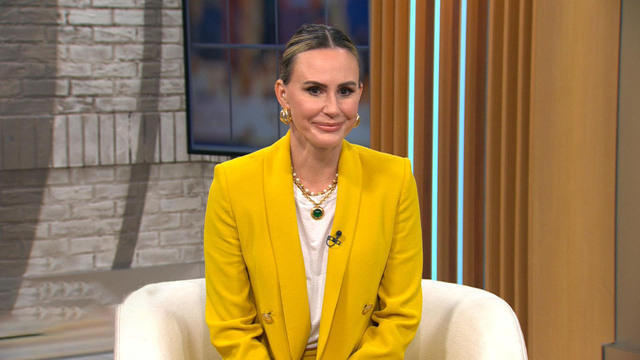
"E! News" co-host Keltie Knight is revealing details about her private battle with a chronic health condition in hopes of helping others. The Emmy Award winner revealed last month that she was having a hysterectomy to treat a chronic and severe form of anemia. She spoke candidly about the decision on Instagram.

A bipartisan group of lawmakers has introduced a bill supporting the development of nuclear fusion power. Hank Jenkins-Smith, professor of public policy at the University of Oklahoma, joins CBS News to discuss.
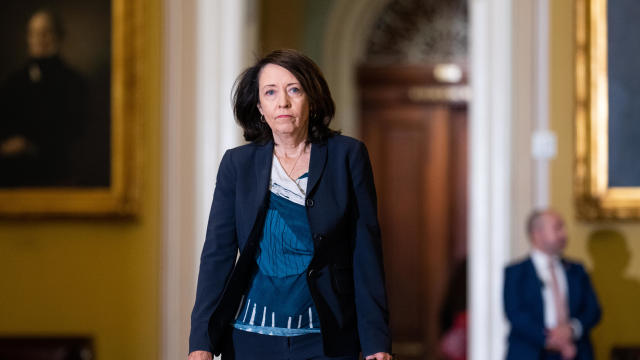
Sen. Maria Cantwell is backing an amended bill that could lead to a ban of TikTok in the U.S.

From labor shortages to environmental impacts, farmers are looking to AI to help revolutionize the agriculture industry. One California startup, Farm-ng, is tapping into the power of AI and robotics to perform a wide range of tasks, including seeding, weeding and harvesting.

U.S. Senators are pressing banks to take more actions to help victims of wire fraud. CBS News national consumer investigative correspondent Anna Werner has more on how Americans are being scammed.

Artificial intelligence has become so advanced it has now surpassed human performance in several basic tasks, according to a new report from Stanford University's Institute for Human-Centered Artificial Intelligence. Russell Wald, deputy director of the institute, joins CBS News to unpack more key findings from the study.
Starbucks unveiled the new cups ahead of Earth Day and as a new report warns plastic production emissions are even greater than those from aviation.

A report from the United Nations determined that 1 million species are threatened with extinction. Dr. John Wiens from the University of Arizona believes that number is far higher based on his research. He says climate change is quickening the threat of extinction for species, including a 3-million-year-old lizard population previously found in the Arizona mountains.
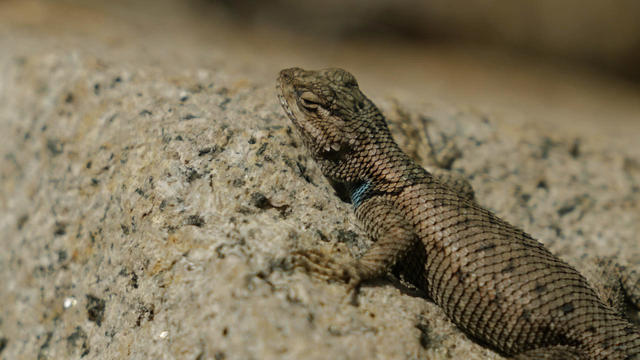
A disappearing lizard population in the mountains of Arizona shows how climate change is fast-tracking the rate of extinction.
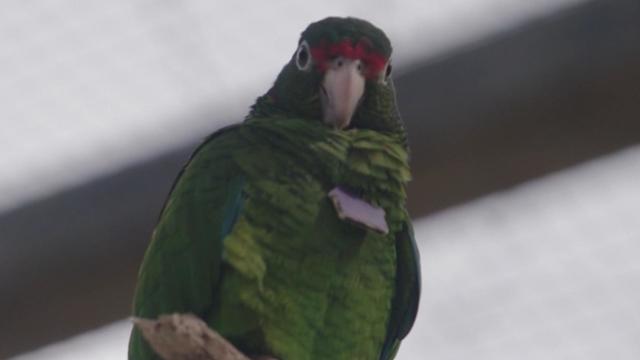
Some of the most critically endangered birds on the planet have been released back into the wild. CBS News national environmental correspondent David Schechter has more on the harsh conditions Puerto Rican parrots face, and the people working to save them.

Scientists are using a range of tools to protect the endangered wildlife that could disappear in coming decades.
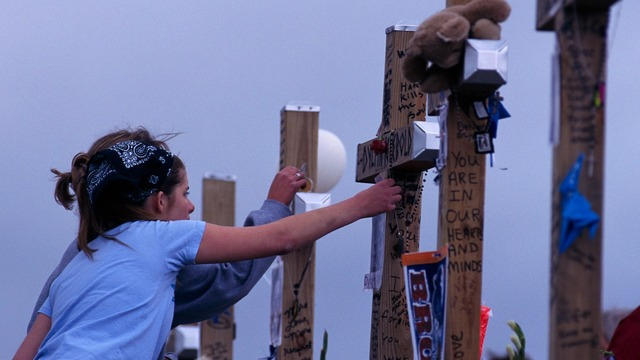
The Columbine High School mass shooting in Littleton, Colorado, left behind many survivors and families who are still dealing with the massacre's trauma. Zach Cartaya, a Columbine student and co-founder of The Rebels Project, joins CBS News with more on his mission to help other victims of violence.
Caretaker Jessy Kurczewski says her friend mixed vodka and Visine for a buzz.
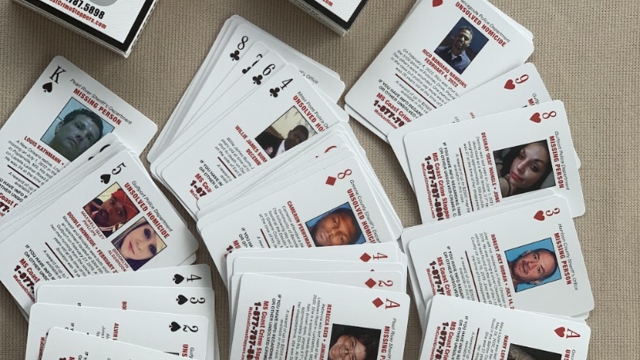
There are 20 missing persons cases and 36 unsolved homicides listed on the cards.
The final five alternate jurors in former President Donald Trump's New York criminal trial were selected on Friday.
Maxwell Anderson, 33, has been charged with first-degree intentional homicide in the death of 19-year-old Sade Robinson.
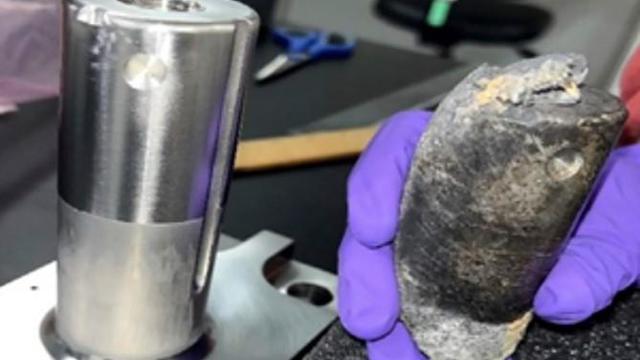
NASA confirmed Monday that a mystery object that crashed through the roof of a Naples, Florida home last month was space junk from equipment discarded by the space station.

NASA said it agrees with an independent review board that concluded the project could cost up to $11 billion without major changes.

It was a "bittersweet moment" as United Launch Alliance brought the Delta program to a close.

NASA flight engineers managed to photograph and videotape the moon's shadow on Earth about 260 miles below them.

Millions of Americans poured into the solar eclipse’s path of totality to watch in wonder. The excitement was shared across generations for the rare celestial event that saw watch parties across the country as almost all of the continental U.S. saw at least a partial solar eclipse.
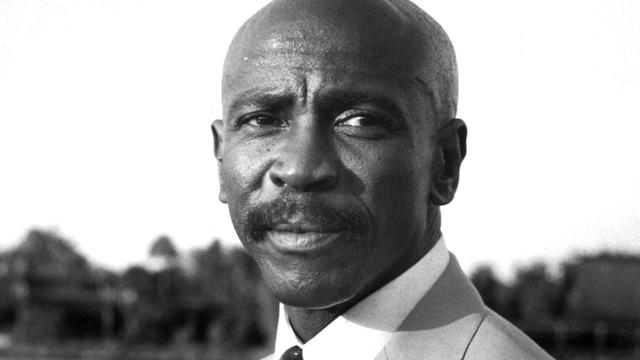
A look back at the esteemed personalities who've left us this year, who'd touched us with their innovation, creativity and humanity.

The Francis Scott Key Bridge in Baltimore collapsed early Tuesday, March 26 after a column was struck by a container ship that reportedly lost power, sending vehicles and people into the Patapsco River.
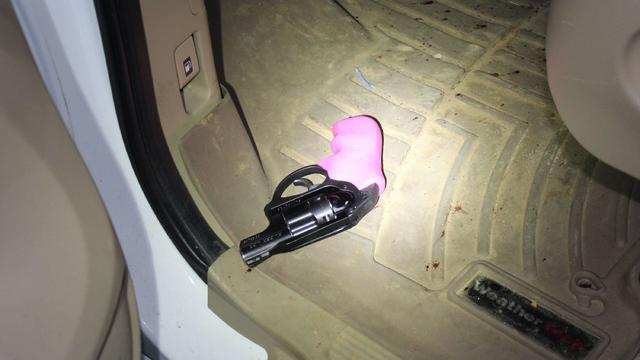
When Tiffiney Crawford was found dead inside her van, authorities believed she might have taken her own life. But could she shoot herself twice in the head with her non-dominant hand?
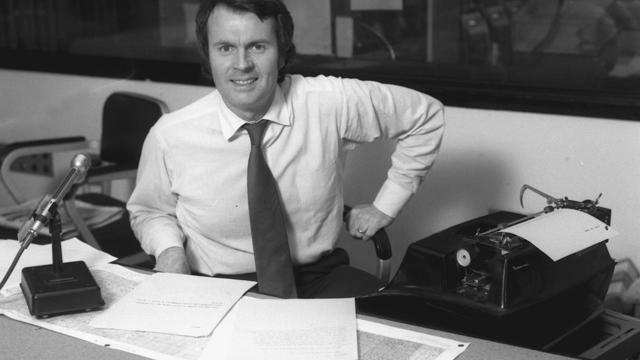
We look back at the life and career of the longtime host of "Sunday Morning," and "one of the most enduring and most endearing" people in broadcasting.

Cayley Mandadi's mother and stepfather go to extreme lengths to prove her death was no accident.

New York officials are investigating the scene near former President Donald Trump's "hush money" trial where a man set himself on fire after pouring a form of liquid over his head. Officials with the New York Fire Department and New York Police Department give an update on their investigation.
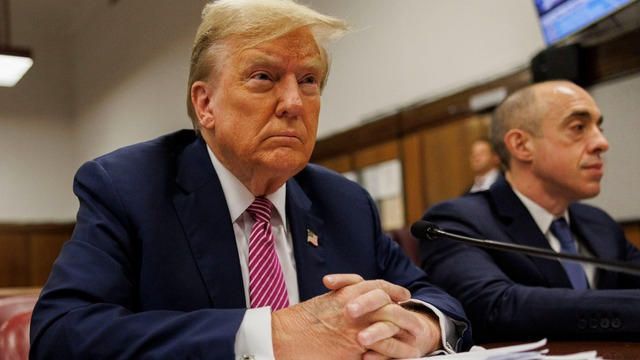
The final alternate jurors have been seated in former President Donald Trump's criminal "hush money" trial. Opening statements in the trial are set to begin Monday. CBS News campaign reporter Katrina Kaufman is following the latest, and CBS News legal contributor Jessica Levinson breaks down how the case could play out.
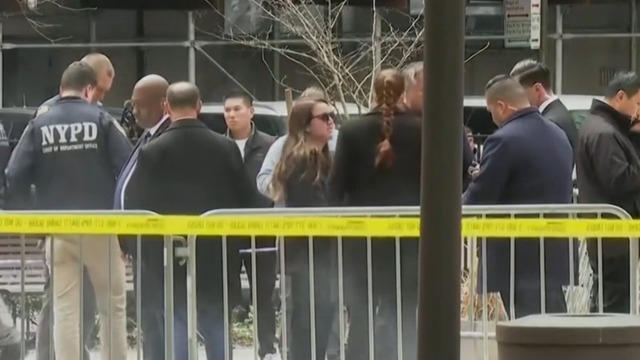
Witnesses say a man set himself on fire Friday at a New York City park across the street from the courthouse where former President Donald Trump's criminal "hush money" trial is taking place. CBS News national correspondent Jericka Duncan reports, and Richard Esposito, a CBS News contributor and a former deputy commissioner for the NYPD, looks at what's next in the investigation.

The Federal Aviation Administration is probing a close call between two planes at Washington's Reagan National Airport Thursday. A JetBlue flight and a Southwest flight almost collided before an air traffic controller warned both pilots to stop immediately. CBS News senior transportation correspondent Kris Van Cleave reports.

Countries around the world are working to ensure tensions between Israel and Iran do not escalate further after the two nations exchanged targeted attacks. Sam Vinograd, a CBS News homeland security contributor and former counterterrorism official, and Eric Lob, an associate professor of politics and international relations at Florida International University, have more on the global repercussions.