
Mail carriers face growing threats of violence amid wave of robberies
America's mail carriers don't just face bad weather and aggressive dogs — they're also increasingly targets of violent crime.
Watch CBS News

America's mail carriers don't just face bad weather and aggressive dogs — they're also increasingly targets of violent crime.

Boeing engineer Sam Salehpour tells lawmakers that employees who raise concerns about safety issues at the company are "threatened."

NPR had suspended Berliner after he claimed in an essay that the network had "lost America's trust" pushing progressive views.

Rideshare passengers have been known to forget all manner of unusual items, from live animals to a car engine.

The miniseries has led to a 93% increase in bookings in Ravello, a city about 15 minutes away from Atrani.

Just figuring out what it costs to get a college degree can deter some people from going to school, a new study suggests.
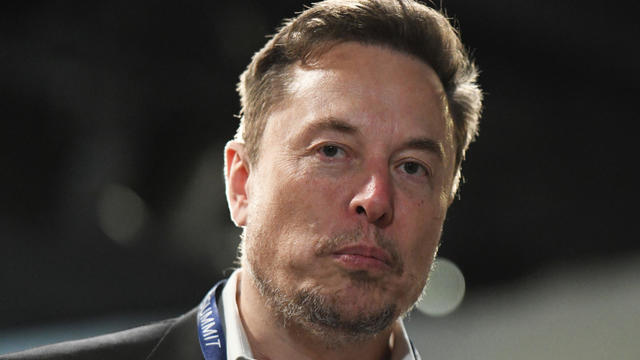
Elon Musk's 2018 compensation package is back for board re-certification after being voided by a Delaware court.

The vehicles' failure to detect a "sudden degradation" in the battery could lead to to a sudden loss of power, Ford warns.

Workers said they're seeking higher pay, a safe and sanitary workplace and transparency in scheduling and rehiring.

Are you thinking about taking out a $15,000 home equity loan? Here's how much it will likely cost per month.

If you're facing mounting debt, there are a few good debt relief options you may want to consider right now.

Long-term care insurance can help cover your cost of care. Here's why you should act now if you're in your 70s.
Tesla accounted for 80% of electric vehicle sales in the U.S. in 2020, but that figure fell to 55% last year.

The generative artificial intelligence boom has led to the emergence of romantic companion bots.

Apple said it will stop selling the devices later this month in order to comply with a U.S. import ban.

Alex Jones, the conspiracy theorist known for his fake news site InfoWars and his false denial of the Sandy Hook massacre, was permanently banned from Twitter in 2018.

More than 90 million consumers will scan a QR code this year. But the technology can also facilitate identity theft.
The billionaire owner of X took a defensive tone, saying that "the whole world will know that those advertisers killed the company."
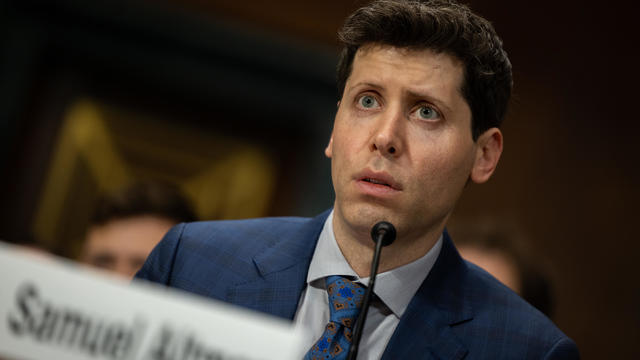
OpenAI co-founder Sam Altman says he's looking forward to returning to the company, with the support of Microsoft's CEO, to build the 2 companies' "strong partnership."

Musk, who is under fire for supporting an antisemitic post, said the money will be donated to hospitals in Israel and to the Red Cross in Gaza.
Altman landed at Microsoft, the biggest investor in OpenAI, as former Twitch leader Emmett Shear was named OpenAI's new chief executive.
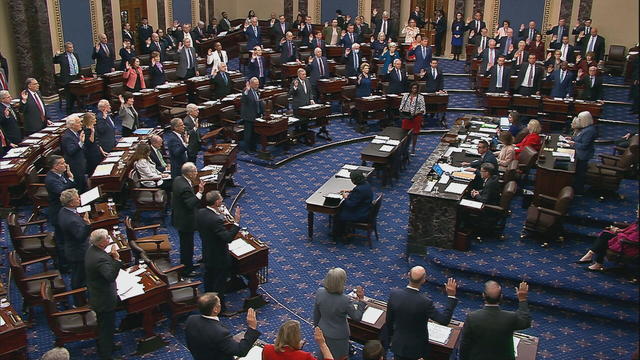
The Senate's 51-member Democratic majority voted to dismiss both charges as unconstitutional over the objections of Republican members.

House Republican leadership on Wednesday unveiled three bills that are part of a complicated plan by Speaker Mike Johnson to approve more foreign aid.

Neither Iran's leaders nor its people appear fearful of an imminent Israeli counterstrike, but they all know the real risks of a war.

Democrats who led probes into Trump's role in Jan. 6 Capitol riot expect to face arrest if he wins: "Anybody who has testified against him...should be worried."
British lawmakers have backed legislation that would see the legal age to buy tobacco increase by one year every year until it's eventually banned.

Dubai International Airport is urging travelers to stay away as flooding from "a historic weather event" hobbles the arid United Arab Emirates.
Workers said they're seeking higher pay, a safe and sanitary workplace and transparency in scheduling and rehiring.
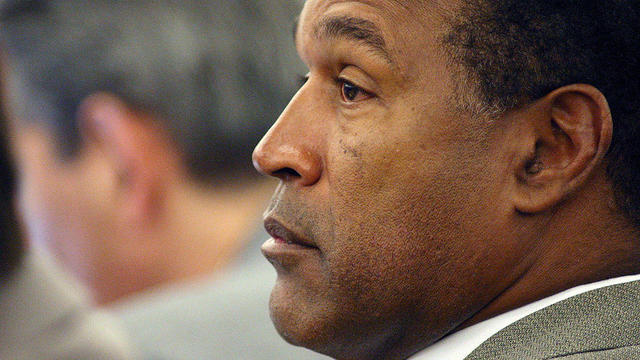
O.J. Simpson's longtime lawyer in Las Vegas says the end came quickly.
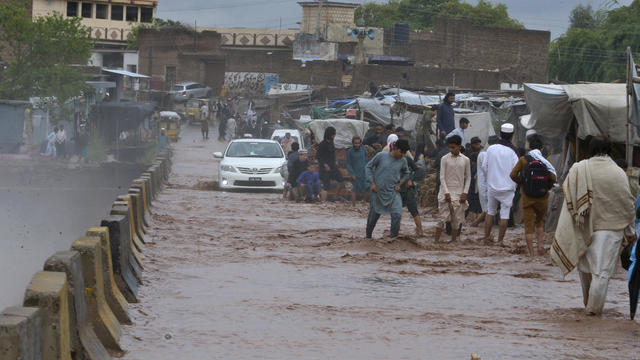
Parts of central Asia, including Pakistan and Afghanistan, have been hit hard by unusually powerful rainstorms and flash floods.

Former "Monty Python" star Eric Idle said people "always assume we're loaded." He added, "I have to work for my living."

Only about 1 in 10 Americans understands the basics of longevity, or how long they'll live in retirement. Can you pass the test?

Over the next few years, the U.S. could see a surge in seniors living in poverty, one retirement expert predicts.

The gap between what people think they'll need for old age and their actual savings is massive, even for those nearing retirement.

Seniors and other recipients of the Social Security program may get a cost-of-living adjustment of 3.1% next year, one forecast says.
Workers said they're seeking higher pay, a safe and sanitary workplace and transparency in scheduling and rehiring.
America's mail carriers don't just face bad weather and aggressive dogs — they're also increasingly targets of violent crime.

The jurors are tasked with deciding the outcome of the first criminal trial of a former president in U.S. history.

Jontay Porter is the second person to be banned from the league for violating league rules after now-former Los Angeles Clippers owner Donald Sterling in 2014.
House Republican leadership on Wednesday unveiled three bills that are part of a complicated plan by Speaker Mike Johnson to approve more foreign aid.
Workers said they're seeking higher pay, a safe and sanitary workplace and transparency in scheduling and rehiring.
America's mail carriers don't just face bad weather and aggressive dogs — they're also increasingly targets of violent crime.
Boeing engineer Sam Salehpour tells lawmakers that employees who raise concerns about safety issues at the company are "threatened."
NPR had suspended Berliner after he claimed in an essay that the network had "lost America's trust" pushing progressive views.
The White House says American workers face unfair competition from Chinese steel and aluminum imports.
The jurors are tasked with deciding the outcome of the first criminal trial of a former president in U.S. history.
House Republican leadership on Wednesday unveiled three bills that are part of a complicated plan by Speaker Mike Johnson to approve more foreign aid.
The White House says American workers face unfair competition from Chinese steel and aluminum imports.
The Senate's 51-member Democratic majority voted to dismiss both charges as unconstitutional over the objections of Republican members.
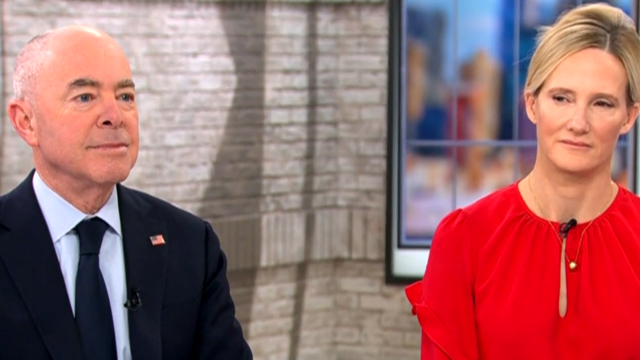
The campaign will work with private and public sector partners to combat rising rates of child exploitation and abuse online.
British lawmakers have backed legislation that would see the legal age to buy tobacco increase by one year every year until it's eventually banned.

A new generation of deodorant products promise whole-body odor protection. Should you try one? Dermatologists share what to know.
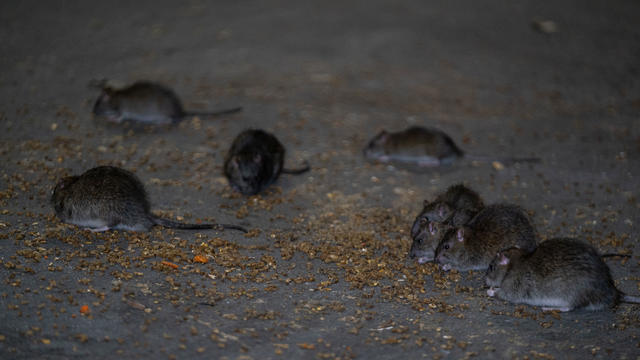
New York City health officials are warning of a worrisome increase in the number of leptospirosis cases from contact with rat urine.

The $872 million most likely excludes any amount UnitedHealth may have paid to hackers in ransom.

The recall comes years after surgeons say they first noticed problems with the HeartMate II and HeartMate 3, manufactured by Thoratec Corp., a subsidiary of Abbott Laboratories.
Parts of central Asia, including Pakistan and Afghanistan, have been hit hard by unusually powerful rainstorms and flash floods.
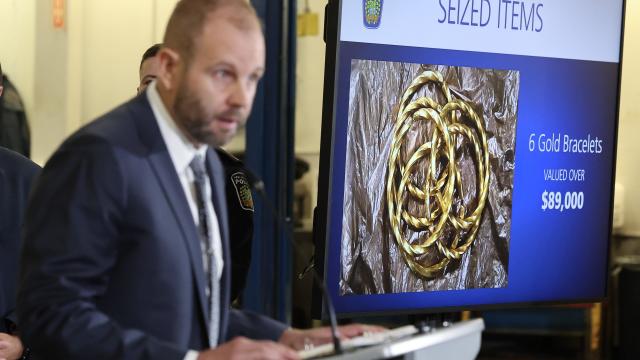
One year after a brazen gold heist at the Toronto airport, nine suspects have been charged in an investigation police said "belongs in a Netflix series."
House Republican leadership on Wednesday unveiled three bills that are part of a complicated plan by Speaker Mike Johnson to approve more foreign aid.
British lawmakers have backed legislation that would see the legal age to buy tobacco increase by one year every year until it's eventually banned.
Neither Iran's leaders nor its people appear fearful of an imminent Israeli counterstrike, but they all know the real risks of a war.

The author whose "Shopaholic" novels were adapted into the 2009 film "Confessions of a Shopaholic" announced she has a rare form of brain cancer.
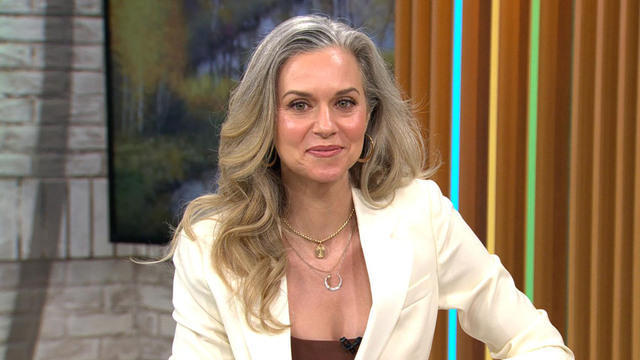
Hilarie Burton Morgan said personal connections to the government and law enforcement communities inspired her involvement in true crime.

Trumpeter Kermit Ruffins has performed around the world, but he's sharing how a personal tragedy involving gun violence has impacted his family and music.
O.J. Simpson's longtime lawyer in Las Vegas says the end came quickly.

Renowned New Orleans trumpeter Kermit Ruffins, celebrated for his performances on global stages, opens up on how his family's firsthand experience with gun violence has shaped his life and music.
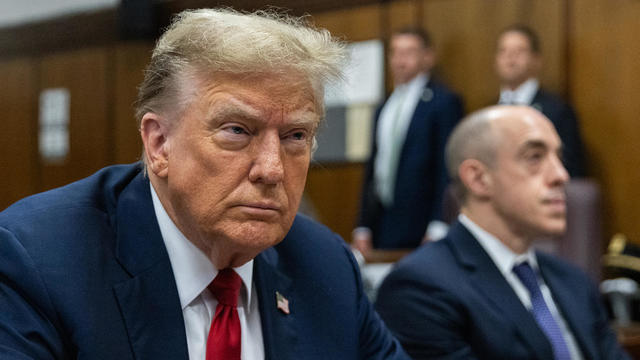
The former president's media company announced plans to air news, religious channels and other content.

The Biden administration is awarding Samsung $6.4 billion to expand American chipmaking. The company will spread the money across at least five facilities in Texas. Sujai Shivakumar, senior fellow at the Center for Strategic and International Studies, joins CBS News to assess the economic and technological impacts.

From labor shortages to environmental impacts, farmers are looking to AI to help revolutionize the agriculture industry. One California startup, Farm-ng, is tapping into the power of AI and robotics to perform a wide range of tasks, including seeding, weeding and harvesting.

Roku said Friday a second security breach impacted more than 576,000 accounts after announcing in March that 15,000 accounts had been exposed by a hack. Emma Roth, a writer for The Verge, joins CBS News with more details.

The bill reforms and extends a portion of the Foreign Intelligence Surveillance Act known as Section 702 for a shortened period of two years.

Dubai was slammed Tuesday with an average year's worth of rain in a single day, halting operations at one of the world's busiest airports and stranding cars on roadways not used to such extreme downpours. Here's why, in some places, less than 6 inches of rain can be so catastrophic.

A major global coral bleaching event is occurring for the second time in 10 years, according to the National Oceanic and Atmospheric Administration. Derek Manzello, A coral reef ecologist and NOAA reef watch coordinator, joins CBS News with more.

NASA said it agrees with an independent review board that concluded the project could cost up to $11 billion without major changes.
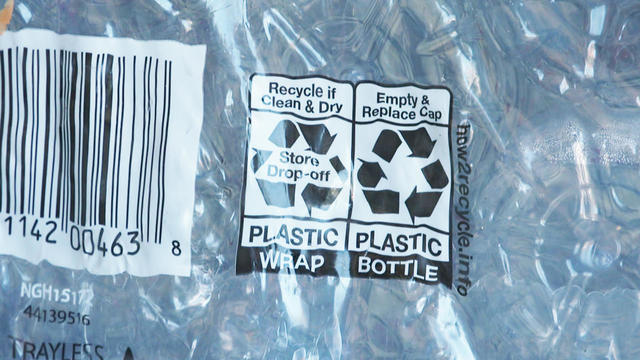
Only 5 to 6% of plastic waste produced in the U.S. is actually recycled. A new report accuses the plastics industry of a decades-long campaign to "mislead" the public about the viability of recycling.
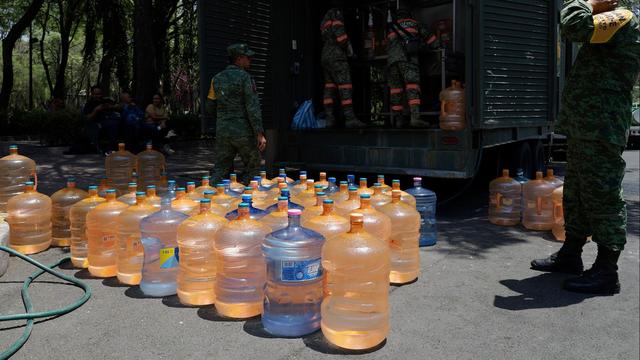
Mexico City, one of the world's most populated cities with nearly 22 million people, could run out of water in months. Florencia Gonzalez Guerra, an investigative video journalist, joins CBS News to examine the causes behind the crisis.
One year after a brazen gold heist at the Toronto airport, nine suspects have been charged in an investigation police said "belongs in a Netflix series."

A financial counselor for the U.S. Army has admitted to tricking the surviving beneficiaries of fallen soldiers out of millions while profiting himself.

Salvatore Rubino kicked illegal gambling profits to the Genovese crime family, prosecutors say.
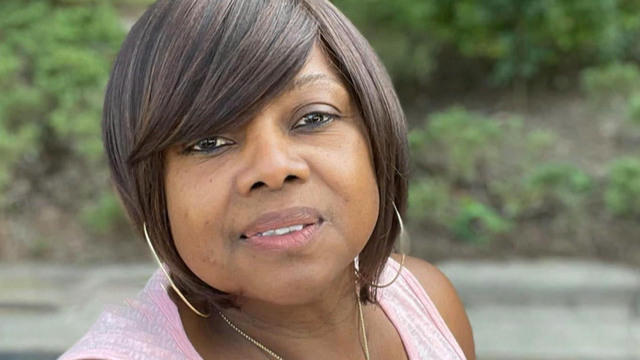
An 81-year-old man is charged with murder after thinking the victim was connected to a scam. William Brock received a threatening call last month from someone demanding money. The scammers also called Loletha Hall, an Uber driver, to pick up a package from Brock’s home. Brock confronted Hall with a gun, believing she was connected to the threats. He is now charged with her murder. Warning: The video in this story is disturbing.

Police say one man was killed and three were injured when gunmen on scooters opened fire in the Bronx on Tuesday.
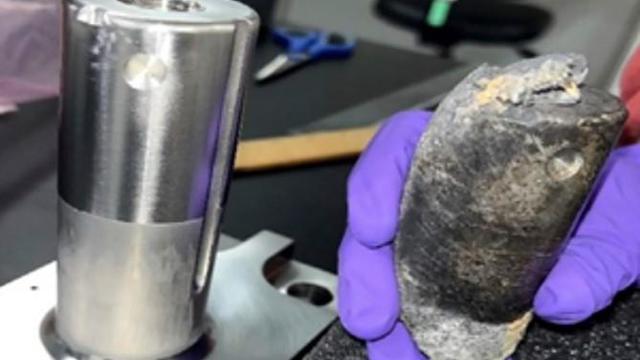
NASA confirmed Monday that a mystery object that crashed through the roof of a Naples, Florida home last month was space junk from equipment discarded by the space station.
NASA said it agrees with an independent review board that concluded the project could cost up to $11 billion without major changes.

It was a "bittersweet moment" as United Launch Alliance brought the Delta program to a close.
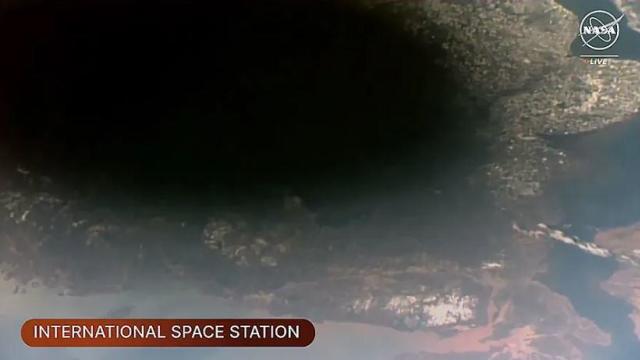
NASA flight engineers managed to photograph and videotape the moon's shadow on Earth about 260 miles below them.

Millions of Americans poured into the solar eclipse’s path of totality to watch in wonder. The excitement was shared across generations for the rare celestial event that saw watch parties across the country as almost all of the continental U.S. saw at least a partial solar eclipse.
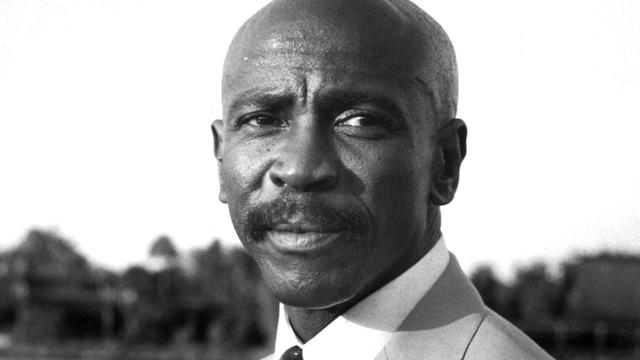
A look back at the esteemed personalities who've left us this year, who'd touched us with their innovation, creativity and humanity.

The Francis Scott Key Bridge in Baltimore collapsed early Tuesday, March 26 after a column was struck by a container ship that reportedly lost power, sending vehicles and people into the Patapsco River.
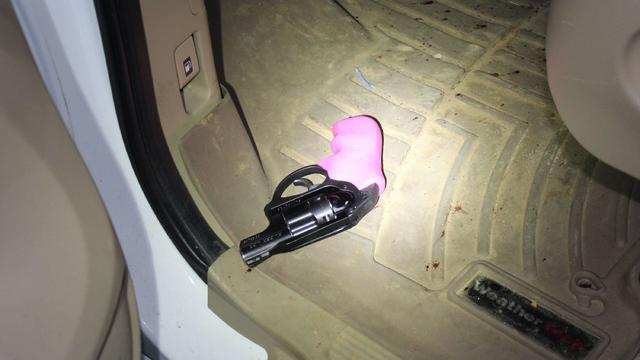
When Tiffiney Crawford was found dead inside her van, authorities believed she might have taken her own life. But could she shoot herself twice in the head with her non-dominant hand?

We look back at the life and career of the longtime host of "Sunday Morning," and "one of the most enduring and most endearing" people in broadcasting.

Cayley Mandadi's mother and stepfather go to extreme lengths to prove her death was no accident.
Dubai was slammed Tuesday with an average year's worth of rain in a single day, halting operations at one of the world's busiest airports and stranding cars on roadways not used to such extreme downpours. Here's why, in some places, less than 6 inches of rain can be so catastrophic.
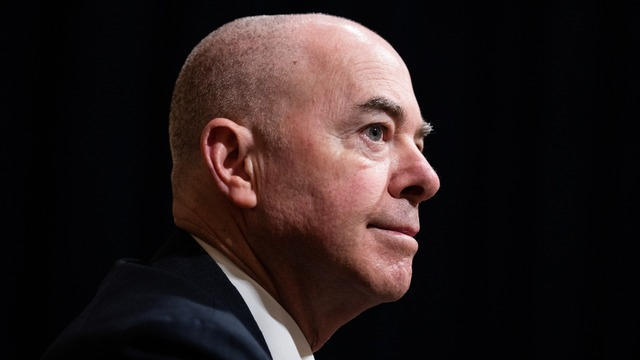
The Senate's impeachment trial of Homeland Security Secretary Alejandro Mayorkas is underway. CBS News congressional correspondents Nikole Killion and Scott MacFarlane are following the process that will determine whether President Biden's Cabinet member should be removed from office.

Israeli officials are still weighing how to respond to Iran's attack with the West expected to impose new economic sanctions that may help de-escalate tensions between the two nations. CBS News' Imtiaz Tyab reports.
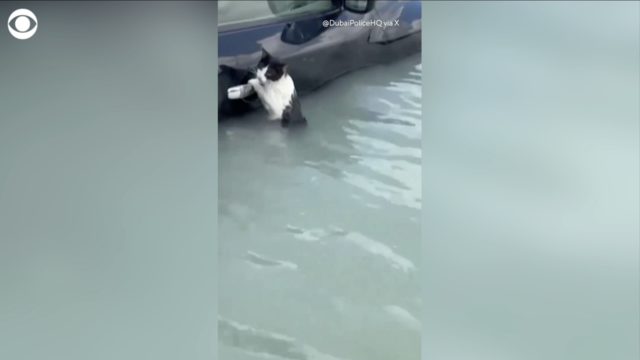
A cat clinging to a car's door handle while submerged in Dubai's floodwaters was rescued as the United Arab Emirates was swamped with its heaviest rain ever recorded. The state-run WAM news agency called the deluge a "historic weather event."

At least a dozen people have died and more are injured after three missiles hit the northern Ukrainian city of Chernihiv, the Associated Press reports. BBC News Ukraine correspondent James Waterhouse has the latest from Kyiv.